> For the complete documentation index, see [llms.txt](https://help.getupnote.com/llms.txt). Markdown versions of documentation pages are available by appending `.md` to page URLs; this page is available as [Markdown](https://help.getupnote.com/resources/keyboard-shortcuts/customize-keyboard-shortcuts-on-mac.md).
# Customize keyboard shortcuts on Mac
1. On your Mac, choose Apple menu  > System Settings, click Keyboard
  in the sidebar (you may need to scroll down), then click **Keyboard Shortcuts**.
2. Select **App Shortcuts** on the left, click
in the sidebar (you may need to scroll down), then click **Keyboard Shortcuts**.
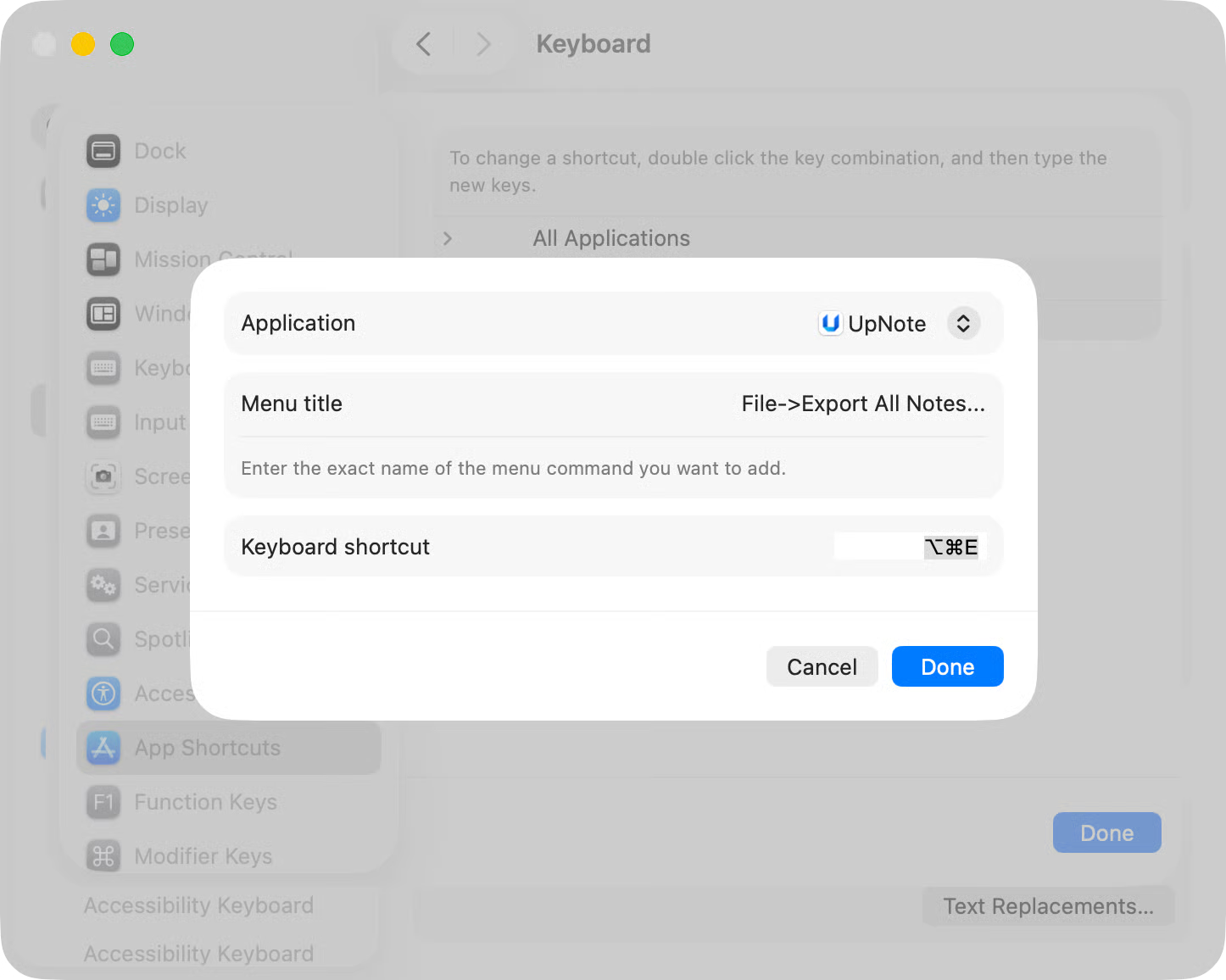
2. Select **App Shortcuts** on the left, click  , click the Application pop-up menu, then choose **UpNote**.
3. In the “**Menu title**” field, type the menu command for which you want to create a shortcut, exactly as the command appears in the menu bar, including the > character (type ->), ellipses (type three full stops without spaces) or other punctuation. For example:
* To export all notes, type "File->Export All Notes..."
* To format the text color as "Red", type "Format->Text Color->Red"
* To format the highlight color as "Red", type "Format->Highlight->Red"
4. Click in the “**Keyboard shortcut**” field, press the key combination you want to use as the keyboard shortcut, then click **Done**.
, click the Application pop-up menu, then choose **UpNote**.
3. In the “**Menu title**” field, type the menu command for which you want to create a shortcut, exactly as the command appears in the menu bar, including the > character (type ->), ellipses (type three full stops without spaces) or other punctuation. For example:
* To export all notes, type "File->Export All Notes..."
* To format the text color as "Red", type "Format->Text Color->Red"
* To format the highlight color as "Red", type "Format->Highlight->Red"
4. Click in the “**Keyboard shortcut**” field, press the key combination you want to use as the keyboard shortcut, then click **Done**.