> For the complete documentation index, see [llms.txt](https://help.getupnote.com/llms.txt). Markdown versions of documentation pages are available by appending `.md` to page URLs; this page is available as [Markdown](https://help.getupnote.com/write-and-edit/links-between-notes.md).
# Links between notes
Your notes in UpNote can be linked together, so you can easily have a cross reference between notes, or make your notes like a personal wiki.
### Link to a note
To refer to another note, type **`[[`** and you can select the note you want to refer to. You may start typing a few letters of the note title and the list will filter the relevant note result for you to choose from. Find the note you want and hit **`Enter`** to insert the note link.

If you want to refer to a note which doesn’t exist yet, simply type the note title and UpNote will create a new note with that title for you.
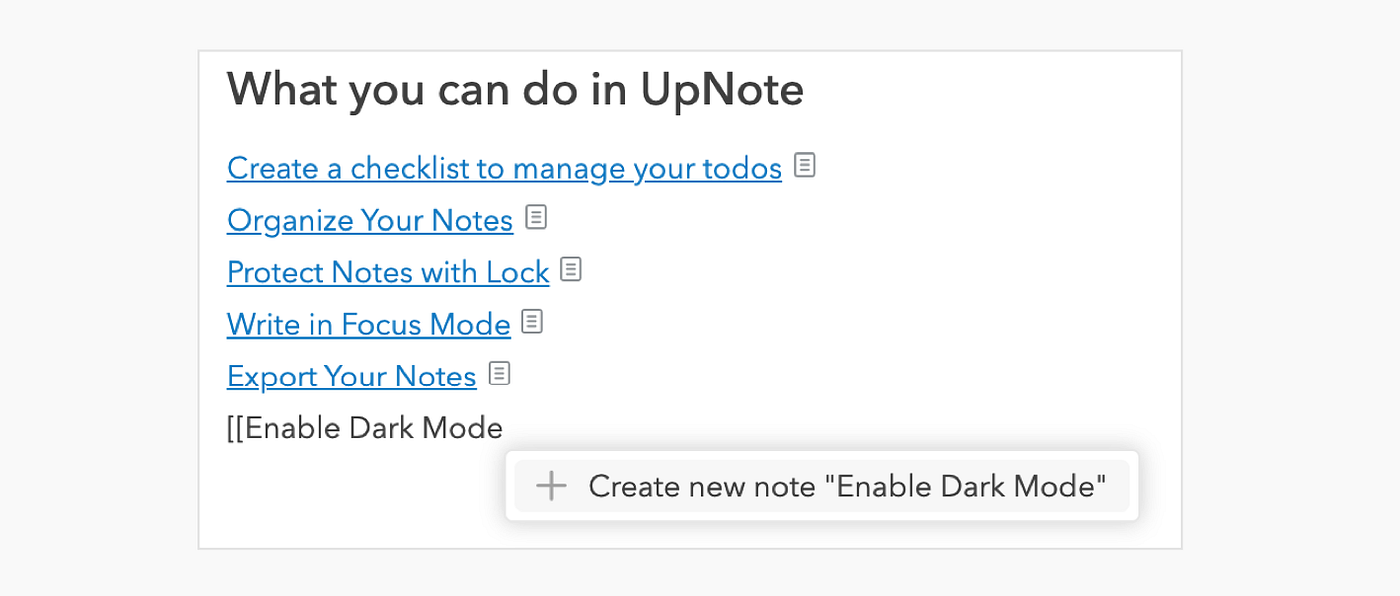
On mobile, you can type **`[[`** like above to link to another note, or tap the note link icon  in the formatting bar.
### Copy link to note
You may also manually copy a note link from the note editor. Click/tap the **`...`** button in the upper bar of your note editor and select **`Copy link to note`**.

You will then be able to paste this link in another note or in another app to open this note.
### **Backlinks**
Backlinks are automatically added in the note you link. To view backlinks, click the **`info`** button at the lower right corner of your note to display the information panel, or use the shortcut **`Cmd/Ctrl`** + **`Shift`** + **`I`**
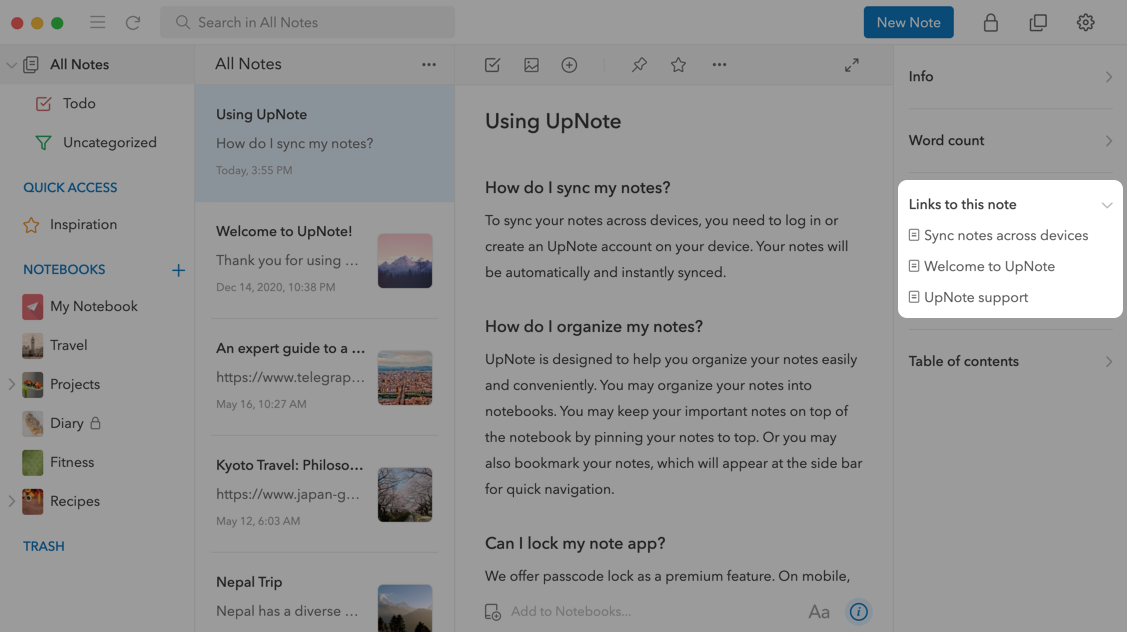
On mobile, tap the info button
in the formatting bar.
### Copy link to note
You may also manually copy a note link from the note editor. Click/tap the **`...`** button in the upper bar of your note editor and select **`Copy link to note`**.

You will then be able to paste this link in another note or in another app to open this note.
### **Backlinks**
Backlinks are automatically added in the note you link. To view backlinks, click the **`info`** button at the lower right corner of your note to display the information panel, or use the shortcut **`Cmd/Ctrl`** + **`Shift`** + **`I`**

On mobile, tap the info button  in the upper right corner of the note editor and expand the **`Links to this note`** section if needed. If there is no backlink, this section won't appear.
### L**ink to a section in a note**
To get the section link, first you need to create a header (H1 — H6) for that section. Then right-click on the header and select **`Copy link to here`** . The link to that section is now copied to the clipboard and you can paste them wherever you want.

On mobile, follow the steps below to get the link to a header:
1. Put the cursor at the heading line
2. Tap on the Heading icon **`H`**
3. Select the link icon
in the upper right corner of the note editor and expand the **`Links to this note`** section if needed. If there is no backlink, this section won't appear.
### L**ink to a section in a note**
To get the section link, first you need to create a header (H1 — H6) for that section. Then right-click on the header and select **`Copy link to here`** . The link to that section is now copied to the clipboard and you can paste them wherever you want.

On mobile, follow the steps below to get the link to a header:
1. Put the cursor at the heading line
2. Tap on the Heading icon **`H`**
3. Select the link icon  to copy the link to that section
### Open a note link
On desktop, you can click the note link directly to go to that note. However, if you just want to preview that note without leaving the current note, you may open the note link in a new window by holding the Cmd/Ctrl key while clicking the note link. That way, you can close the note window when you are done with previewing without shifting the focus out from the current note.
to copy the link to that section
### Open a note link
On desktop, you can click the note link directly to go to that note. However, if you just want to preview that note without leaving the current note, you may open the note link in a new window by holding the Cmd/Ctrl key while clicking the note link. That way, you can close the note window when you are done with previewing without shifting the focus out from the current note.