> For the complete documentation index, see [llms.txt](https://help.getupnote.com/llms.txt). Markdown versions of documentation pages are available by appending `.md` to page URLs; this page is available as [Markdown](https://help.getupnote.com/import-and-export/share-and-publish-notes.md).
# Share and publish notes
This is a Premium feature.
UpNote allows you to publish any note as a **web page**, making it easy to share your notes with friends, colleagues, or anyone online. Once published, you can copy the link and send it through email, messaging apps, or anywhere you like.
***
### 🖥 On Desktop (Windows & macOS)
#### **Share a Note**
1. Open the note you want to share.
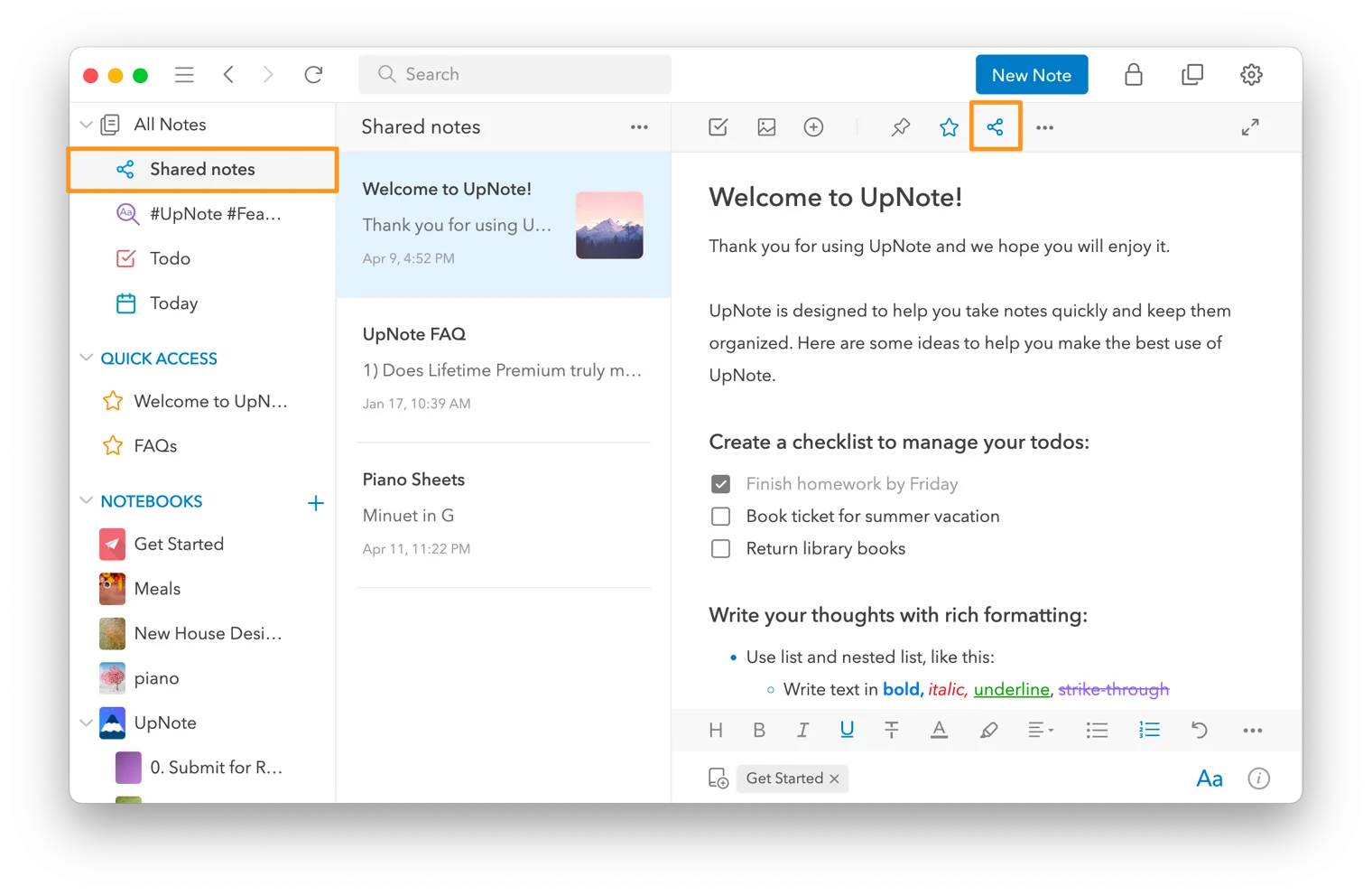
2. Click the **Share** button in the top bar of the note editor.
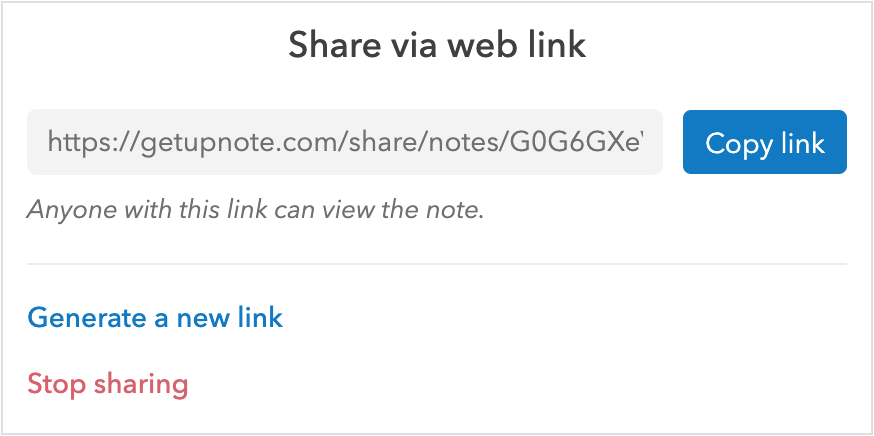
3. Click **Copy Link** to copy the web link to your clipboard.
You can now paste the link into an email, chat message, or your web browser to preview the published note.
#### **Stop Sharing a Note**
* Click **Stop sharing** to disable the link.
* The web link will immediately become invalid and no one will be able to access the note.
#### **Generate a New Link**
* Click **Generate a new link** to create a fresh URL.
* The old link will be permanently invalid.
* This is useful if you want to reset access or share the note with a new audience.
***
### 📱 On Mobile (iOS & Android)
#### **Share a Note**
1. Open the note.
2. Tap the **Share** button in the top bar.
3. Tap **Share Link** to send the link using your device’s share sheet.
#### **Stop Sharing**
* Tap **Stop sharing** to disable the published link.
* The link will no longer work once sharing is stopped.
#### **Generate a New Link**
* Tap **Generate a new link** to replace the existing URL with a new one.
* The previous link becomes invalid immediately.
***
### 🔎 View Shared Notes
You can easily identify and manage your shared notes:
* When a note is shared, the **Share icon** in the top bar is highlighted.
* You can view all shared notes by using the **Shared Notes** [filter](/organize-and-manage-notes/find-and-view-notes/filter-notes.md) in the **All Notes** section.
***
#### 💡 Tips
* Shared notes are read-only for viewers; they cannot edit your content.
* You can unshare links at any time for privacy and control.
* Linked notes can be shared together to create a seamless reading experience for your audience.