> For the complete documentation index, see [llms.txt](https://help.getupnote.com/llms.txt). Markdown versions of documentation pages are available by appending `.md` to page URLs; this page is available as [Markdown](https://help.getupnote.com/resources/widgets-for-mobile-apps.md).
# Widgets for mobile apps
UpNote supports widgets on **iOS and Android**, allowing you to access your notes quickly from your home screen. Widgets help you stay organized by giving you fast access to recent notes, pinned notes, or your note list.
***
UpNote offers several widget types on iPhone, iPad and Android:
#### **Quick Action Widget**
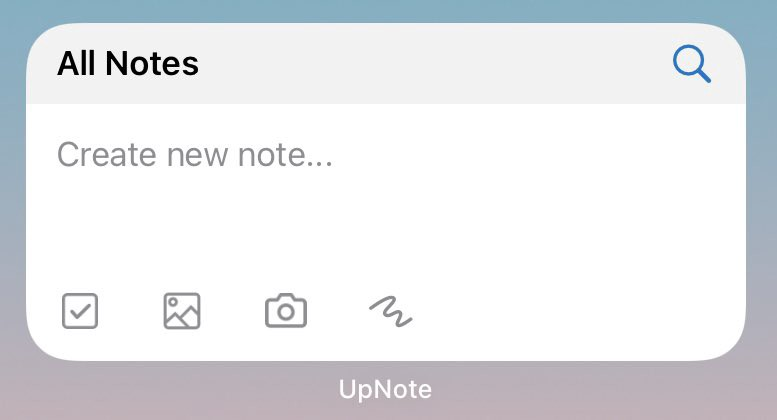
The **Quick Actions** widget gives you fast shortcuts to create different types of notes.\
You can quickly:
* Create a new note
* Add a new task
* Insert an image
* Take a photo
* Add a drawing
You can also choose where new notes should be saved, such as:
* **All Notes**
* A specific **Tag**
* A specific **Notebook**
This widget is ideal for capturing ideas or tasks instantly.
***
#### **Notes List Widget**
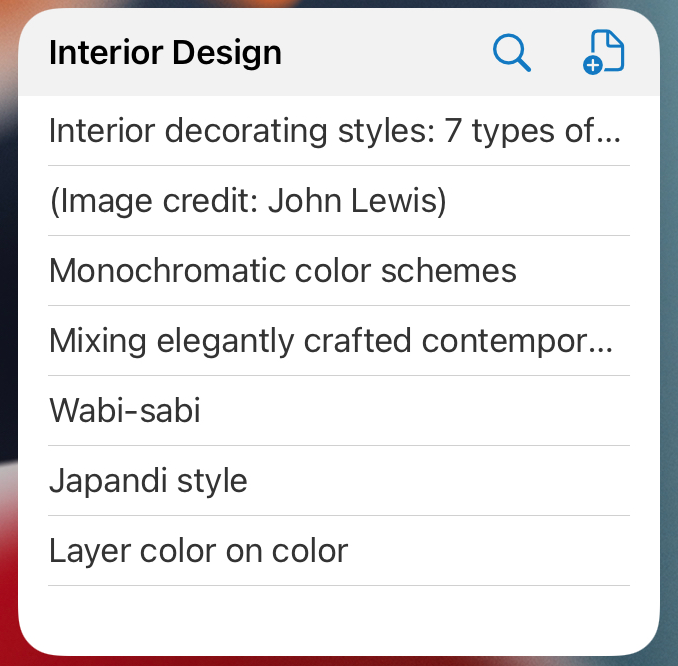
ou can customize the list to show notes from:
* **All Notes**
* **Quick Access**
* A specific **Notebook**
* A specific **Tag**
* A **Filter**
From this widget, you can:
* Quickly open any note
* Search for a note
* Create a new note directly in the selected location
**Customize the Note List Location:**
1. Long tap the widget.
2. Tap **Edit Widget**.
3. Select the desired location (filter, notebook, or tag).
***
#### **Single Note Widget**
Shows a specific note content, so you can use it as a shortcut to your note.
***
#### **How to Add a Widget on iOS**
1. Long-press your home screen and tap the **Edit** button in the upper-left corner.
2. Select **Add Widget**
3. Search for **UpNote** in the widget list.
4. Choose a widget size and type.
5. Tap **Add Widget**, then configure it if needed (e.g., select a notebook, tag, or note).
***
#### **How to Add a Widget on Android**
1. Long-press your home screen and tap **Widgets**.
2. Find **UpNote** in the list.
3. Choose a widget size and type.
4. Drag and drop the widget to your home screen.
5. Configure it if needed (choose a note or notebook).