> For the complete documentation index, see [llms.txt](https://help.getupnote.com/llms.txt). Markdown versions of documentation pages are available by appending `.md` to page URLs; this page is available as [Markdown](https://help.getupnote.com/ja/import-and-export/web-clipper/share-extension-on-ios.md).
# iOS の共有拡張機能
**UpNote** は iOS の **共有拡張機能(Share Extension)** に対応しており、他のアプリから **ウェブページ、画像、選択したテキスト** をすばやく UpNote に送信できます。\
移動中でも簡単にコンテンツを保存し、ノート内で整理することができます。
***
#### ウェブページを共有する
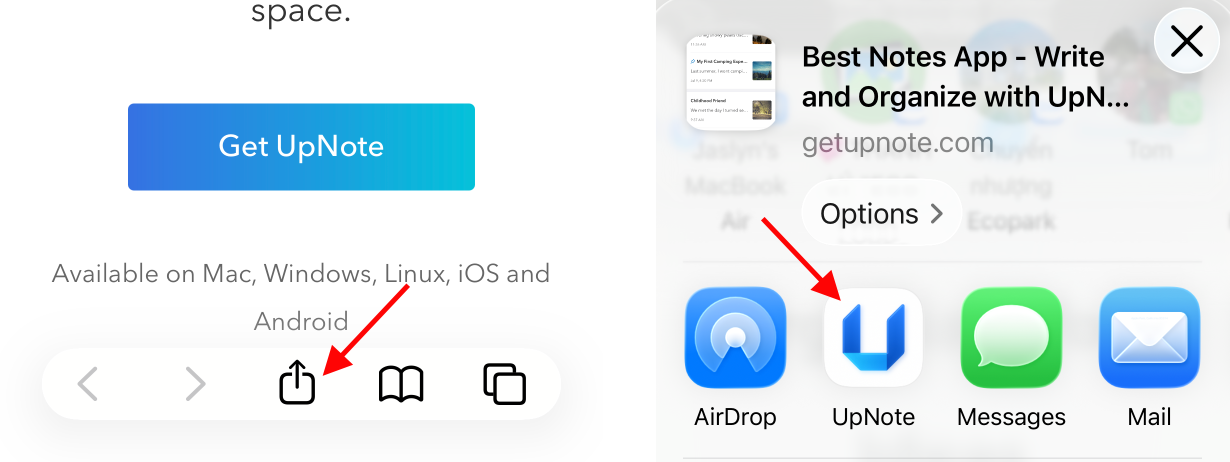
1. **Safari** でウェブページを開きます。
2. 下部バーの **共有(Share)** ボタンをタップします。
3. アプリ一覧から **UpNote** を選択します。
**アプリ一覧に UpNote が表示されない場合:**
1. アプリ一覧を **右端までスワイプ** します。
2. **その他(More)** をタップします。
3. 右上の **編集(Edit)** をタップします。
4. **UpNote** を有効にして共有オプションに追加します。
ノートに詳細を追加することも可能です(任意)。\
完了したら **投稿(Post)** をタップして UpNote に送信します。
ウェブページは自動的に UpNote にクリップされます。\
アプリを開くと、内容を確認したり他のデバイスと同期したりできます。
***
#### 選択したテキストを共有する
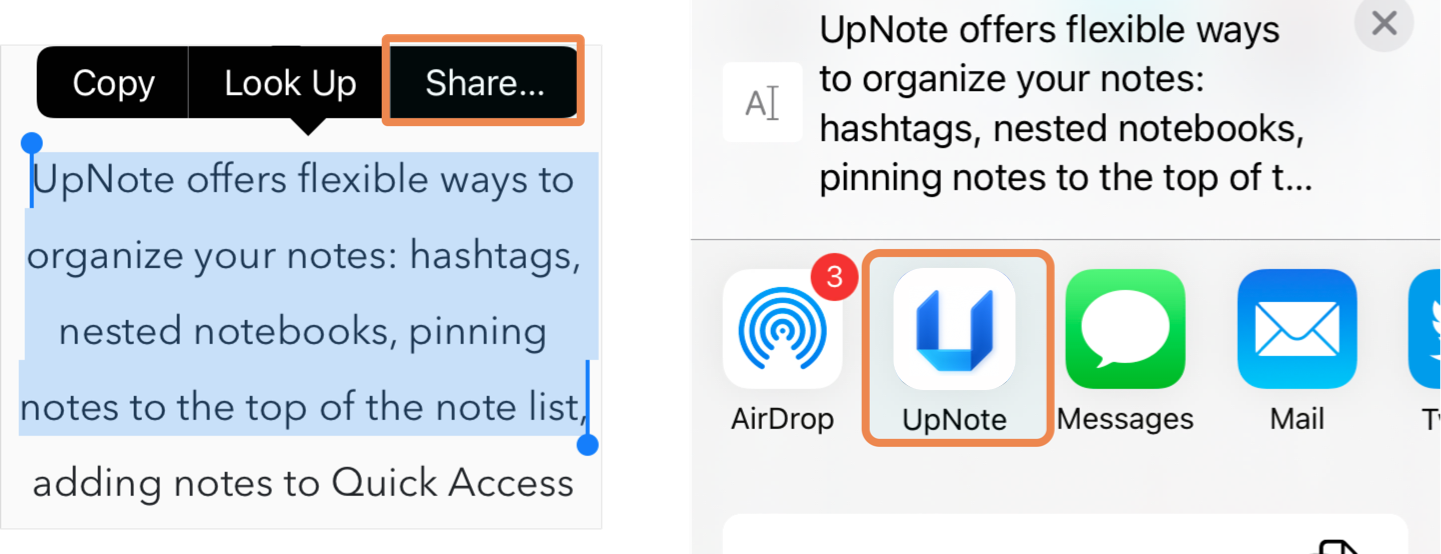
1. 共有したいテキストを選択します。
2. ポップアップメニューに表示される **共有(Share)** ボタンをタップします。
3. アプリ一覧から **UpNote** を選択します。
**UpNote が表示されない場合:**
1. アプリ一覧を **右端までスワイプ** します。
2. **その他(More)** をタップします。
3. **編集(Edit)** をタップして **UpNote** を有効にします。
必要に応じて内容を追加し、**投稿(Post)** をタップして UpNote に送信します。
選択したテキストは新しいノートとして UpNote に保存されます。\
アプリを開くと内容を確認したり、他のデバイスと同期することができます。
***
#### 💡 ヒント
* iOS の共有シートをサポートしているアプリなら、**画像・テキスト・ウェブリンク** を共有できます。
* 共有されたコンテンツは **新しいノート** として保存され、UpNote 内で移動、タグ付け、編集が可能です。