> For the complete documentation index, see [llms.txt](https://help.getupnote.com/llms.txt). Markdown versions of documentation pages are available by appending `.md` to page URLs; this page is available as [Markdown](https://help.getupnote.com/ja/write-and-edit/info-panel.md).
# 情報パネル
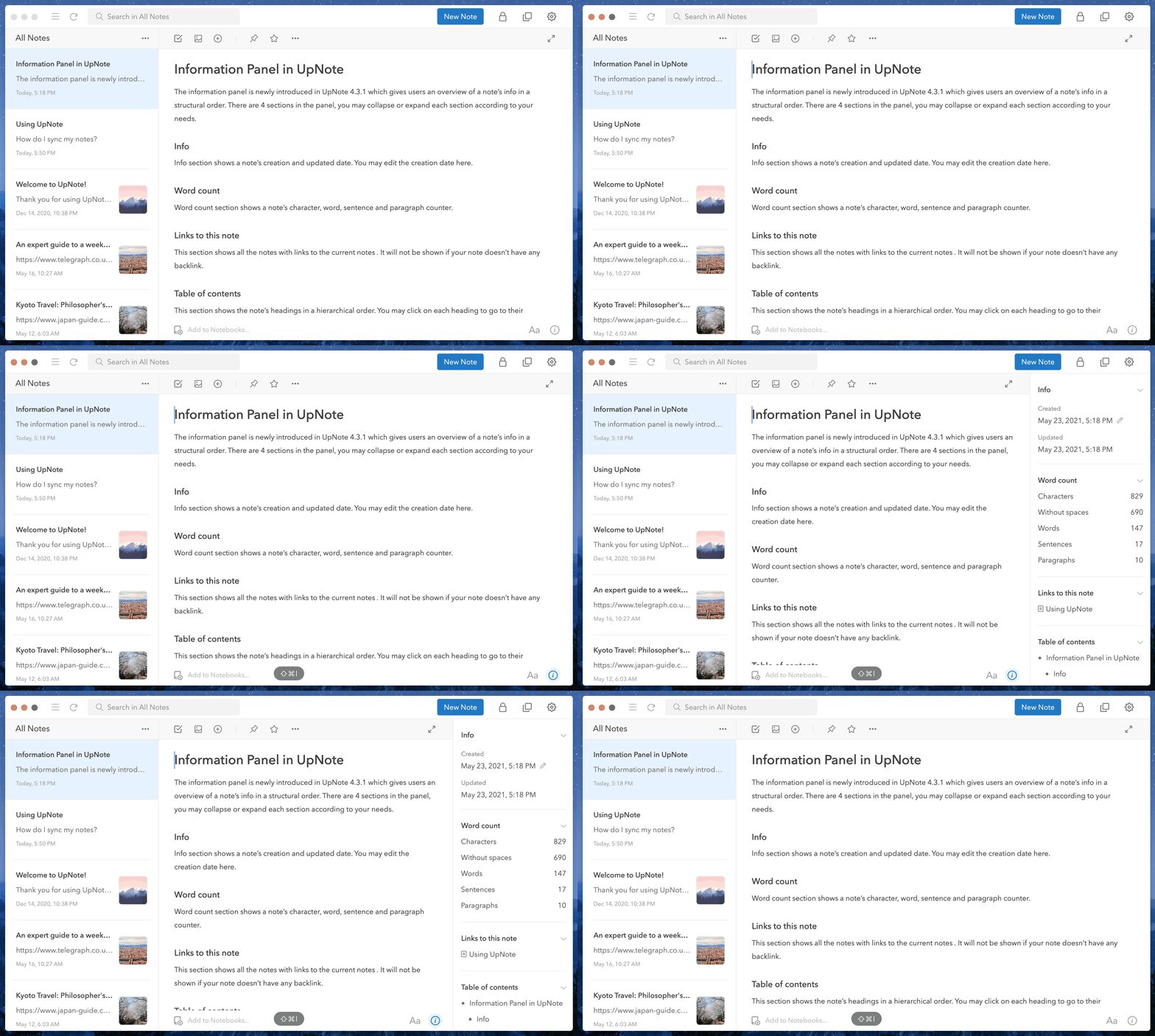
**情報パネル** では、ノートの詳細情報とナビゲーションツールを体系的に確認できます。\
このパネルは必要に応じて各セクションを開閉でき、次の 4 つの項目で構成されています。
* **情報(Info):**\
ノートの作成日と最終更新日を表示します。ここで日付を直接編集することもできます。
* [**文字数カウント(Word Count)**](https://help.getupnote.com/write-and-edit/info-panel/word-count):\
文字数、単語数、文の数、段落数などの統計情報を表示します。
* **このノートへのリンク(Links to This Note):**\
現在のノートにリンクしているすべてのノートを一覧表示します。\
このセクションは、バックリンクが存在する場合にのみ表示されます。\
UpNote の双方向リンクについては [こちら](/ja/write-and-edit/links-between-notes.md) をご覧ください。
* [**目次(Table of Contents)**](/ja/write-and-edit/info-panel/table-of-contents.md):\
ノート内の見出しを階層的に表示します。見出しをクリックすると、その位置へジャンプできます。\
ノートに見出しが含まれている場合のみ表示されます。
 ***
#### **デスクトップの場合**
ノートウィンドウの右下にある **`info`** アイコンをクリックするか、\
ショートカット **`Ctrl/Cmd + Shift + I`** を使用して情報パネルを表示/非表示に切り替えます。
***
#### **デスクトップの場合**
ノートウィンドウの右下にある **`info`** アイコンをクリックするか、\
ショートカット **`Ctrl/Cmd + Shift + I`** を使用して情報パネルを表示/非表示に切り替えます。
 ***
#### **モバイルの場合**
ノートエディタ右上の
***
#### **モバイルの場合**
ノートエディタ右上の  アイコンをタップして情報パネルを表示します。