# ノートを共有・公開する

## ノートの共有と公開（Share and publish notes）

**UpNote** では、任意のノートを **Webページとして公開** できます。\
これにより、友人や同僚、またはインターネット上の誰とでも簡単にノートを共有できます。\
公開後はリンクをコピーして、メールやメッセージアプリなどで共有できます。

***

#### 🖥 デスクトップ版（Windows / macOS）

**ノートを共有する**

1. 共有したいノートを開きます。
2. ノートエディター上部の **Share（共有）** ボタンをクリックします。
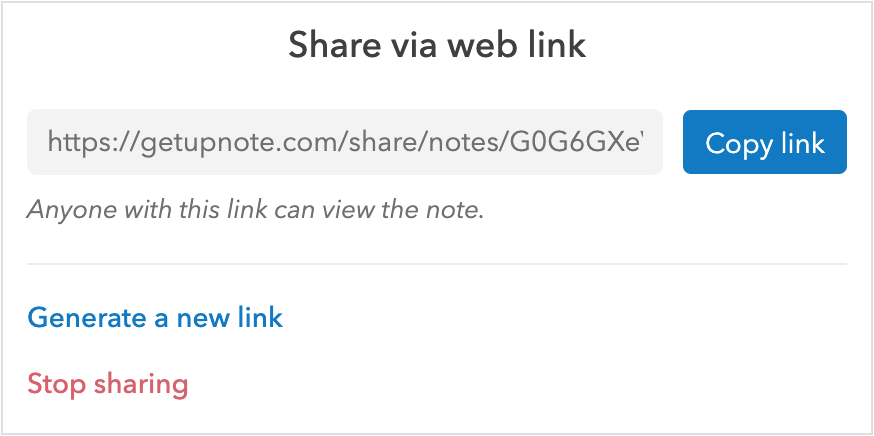
3. **Copy Link（リンクをコピー）** をクリックして、クリップボードにリンクをコピーします。

<div align="left"><figure><img src="https://3053791484-files.gitbook.io/~/files/v0/b/gitbook-x-prod.appspot.com/o/spaces%2FFt4LISrSRa6fHrbSIdcE%2Fuploads%2Fs2f6QUgrVxKi57AO63Fs%2Fimage.png?alt=media&#x26;token=f88d356b-e98e-4c2f-942d-bed666c32dac" alt="" width="375"><figcaption></figcaption></figure></div>

コピーしたリンクをメールやチャット、ブラウザに貼り付けて、公開ノートを閲覧できます。

***

**共有を停止する**

* **Stop sharing（共有を停止）** をクリックすると、リンクが無効になります。
* 停止後は誰もそのノートにアクセスできません。

***

**新しいリンクを生成する**

* **Generate a new link（新しいリンクを生成）** をクリックすると、新しいURLが作成されます。
* 古いリンクは自動的に無効になります。
* 共有相手を切り替えたい場合やアクセスをリセットしたいときに便利です。

***

#### 📱 モバイル版（iOS / Android）

**ノートを共有する**

1. ノートを開きます。
2. 右上の **Share（共有）** ボタンをタップします。
3. **Share Link（リンクを共有）** をタップすると、端末の共有シートからリンクを送信できます。

***

**共有を停止する**

* **Stop sharing（共有を停止）** をタップすると、公開リンクが無効になります。
* 停止後はそのリンクからノートを閲覧できなくなります。

***

**新しいリンクを生成する**

* **Generate a new link（新しいリンクを生成）** をタップすると、新しいURLが発行されます。
* 以前のリンクは即座に無効になります。

***

#### 🔎 共有中のノートを確認する

共有済みノートは次の方法で簡単に確認・管理できます：

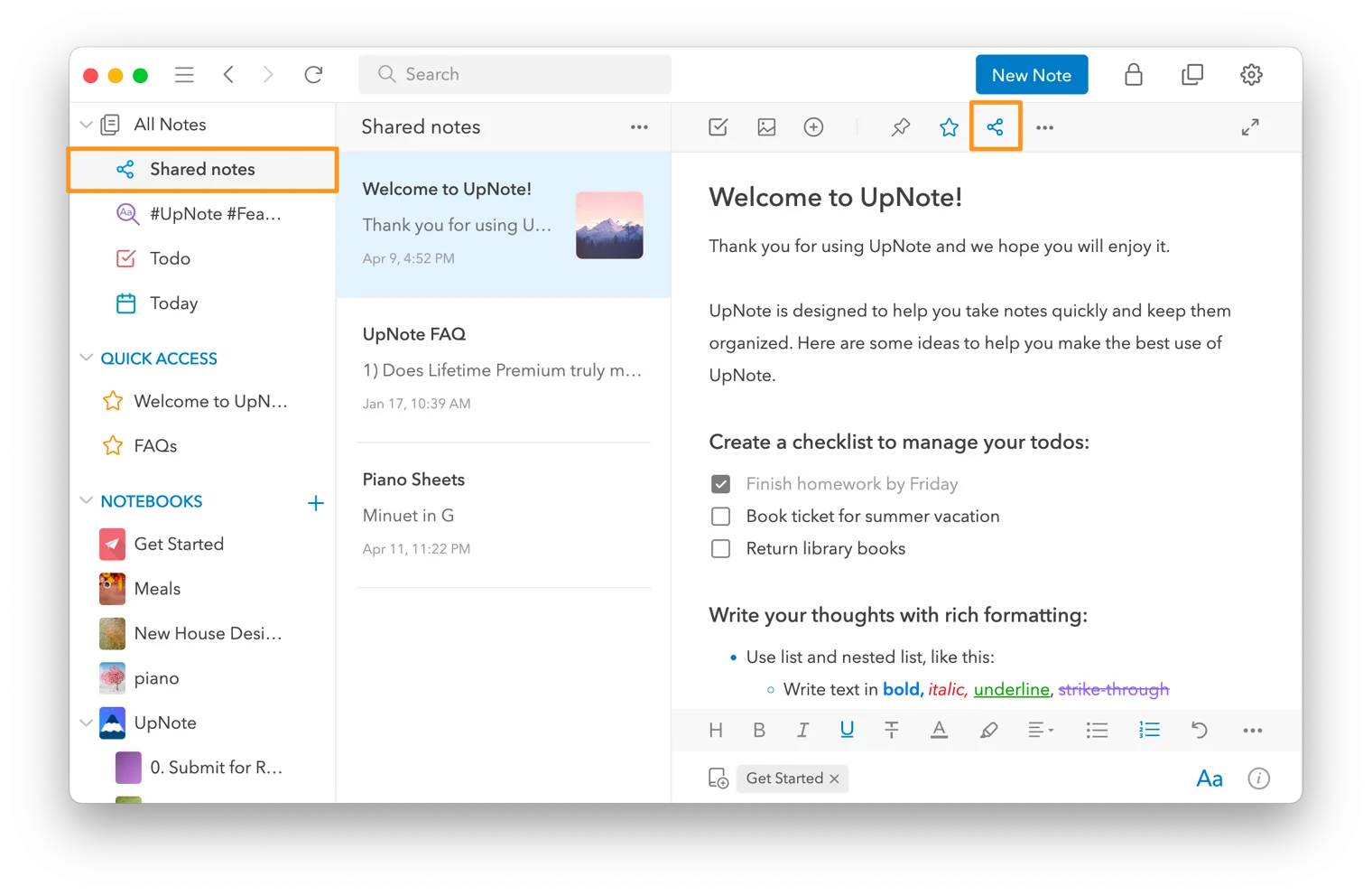
* 共有中のノートは、上部の **Share アイコン** がハイライト表示されます。
* **All Notes** セクションの [**Shared Notes フィルター**](/ja/organize-and-manage-notes/find-and-view-notes/filter-notes.md) を使うと、共有中のノートをまとめて表示できます。

<figure><img src="https://3053791484-files.gitbook.io/~/files/v0/b/gitbook-x-prod.appspot.com/o/spaces%2FFt4LISrSRa6fHrbSIdcE%2Fuploads%2FWLtcDB4H7MQzEDXsUuZh%2Fimage.png?alt=media&#x26;token=dbb442e1-54f0-445b-9f6c-3da645e2415d" alt=""><figcaption></figcaption></figure>

***

#### 💡 ヒント

* 公開されたノートは **閲覧専用** で、他のユーザーが編集することはできません。
* 共有リンクはいつでも解除でき、プライバシーを確保できます。
* 複数のノートをリンクでつなげて、読者に連続した閲覧体験を提供することもできます。


---

# Agent Instructions: Querying This Documentation

If you need additional information that is not directly available in this page, you can query the documentation dynamically by asking a question.

Perform an HTTP GET request on the current page URL with the `ask` query parameter:

```
GET https://help.getupnote.com/ja/import-and-export/share-and-publish-notes.md?ask=<question>
```

The question should be specific, self-contained, and written in natural language.
The response will contain a direct answer to the question and relevant excerpts and sources from the documentation.

Use this mechanism when the answer is not explicitly present in the current page, you need clarification or additional context, or you want to retrieve related documentation sections.