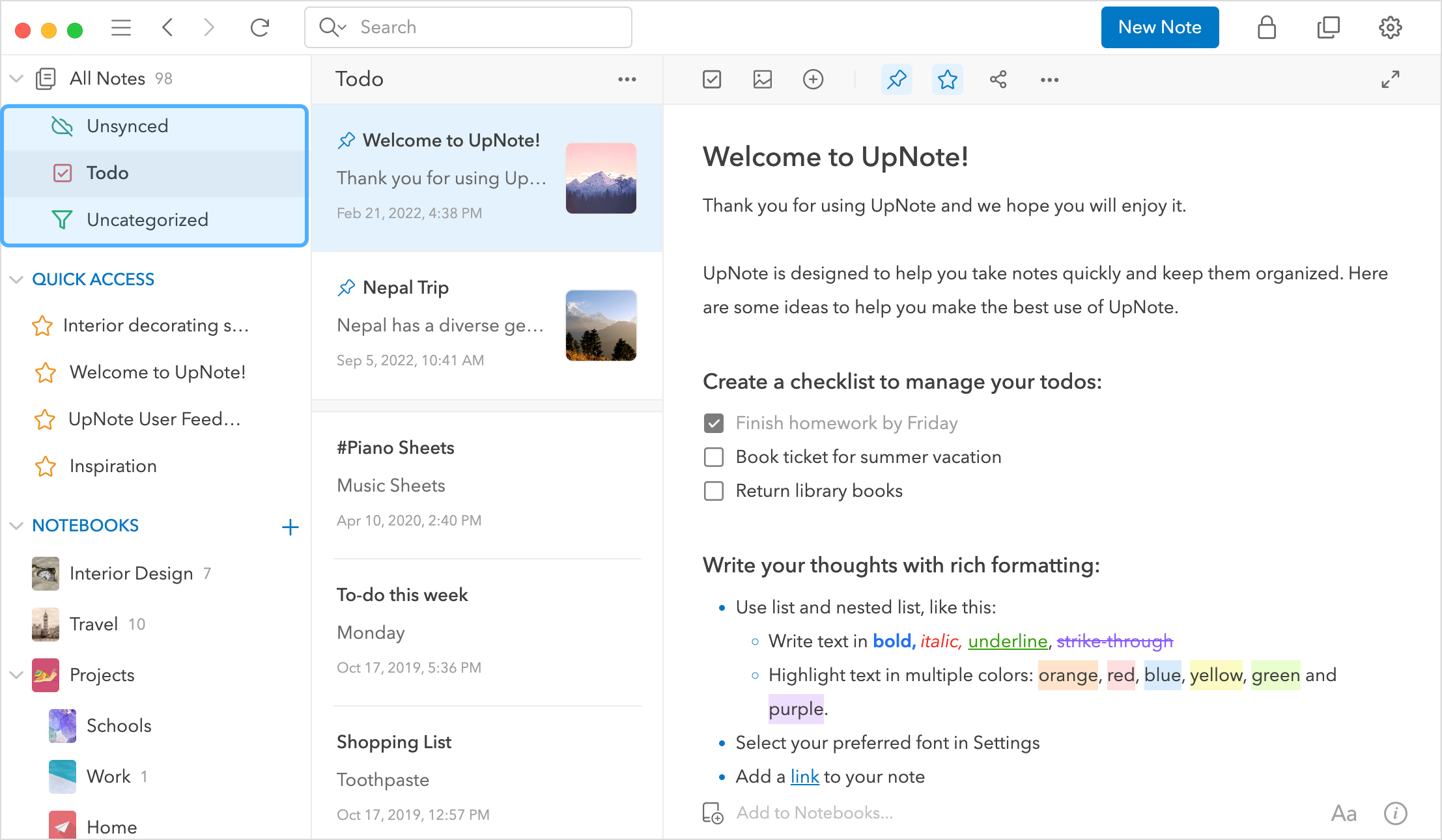
# Filter your notes
When you first open UpNote, you will see 3 filters: **`Todo`** and **`Uncategorized`** and **`Unsynced`** under the **`All Notes`** section. You may click on the down-arrow button in front of the “All Note” label to expand or collapse these filters.
**`Todo`** filter automatically displays notes which contain incomplete todo items. This would help you quickly glance through and update your tasks.
**`Uncategorized`** filter displays notes which do not belong to any notebook. This way you can review your notes and organize them to their notebooks if necessary.
**`Unsynced`** filter displays notes which are not fully synced to the server yet. If a part of the note content (e.g. images, attachments...) is not fully uploaded and synced, it will appear in this filter. You can check the Unsynced filter to find out if any of your notes are not synced.
### **Add a new filter**
**On desktop,** click the more button **`...`** next to All Note label and select **`Filter Notes`**

On **mobile**, tap the **`...`** button in the lower right corner of your notes list screen and select **`Filter Notes`**
You will then be able to select a new filter to add.

* Select **`Todo`** filter to display notes which contains incomplete todo items.
* Select **`Today`** filter to display notes which are updated today.
* Select **`Notes containing words`** to filter your notes based on the matching words. Enter the words you want to filter.
* Select **`Uncategorized`** to filter your notes which do not belong to any notebooks.
* Select **`Share notes`** to filter notes which are currently shared via a web link.
* Select **`Unsynced`** to filter notes which are not synced to the server yet.
### Filter notes containing multiple tags
You may use filters to quickly find notes which contain multiple hashtags. Follow the steps below:
* Add a new filter and select **`Notes containing words`**
* Enter the hashtags in the input box, for example:\
\

* Click **`Create Filter`** button. Your new filter of notes containing hashtags will appear in the sidebar under the **`All Notes`** section.