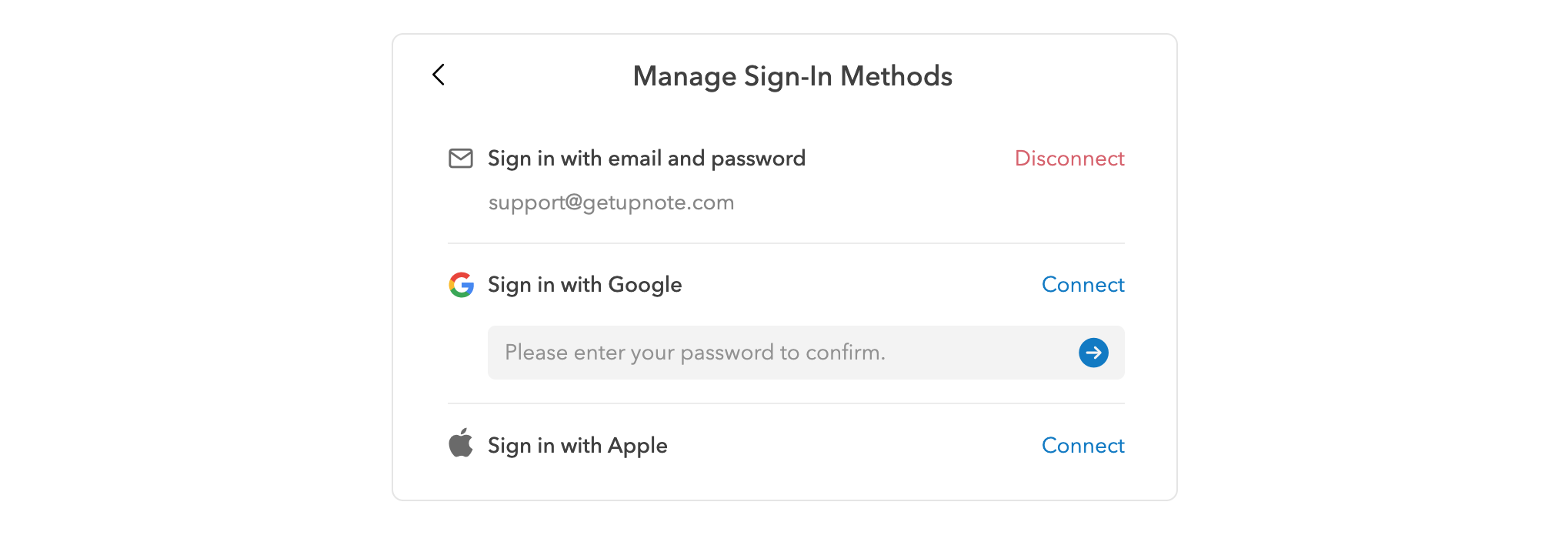
# Manage sign-in methods
You can access your UpNote account using any of these sign-in methods:
1. Email and password
2. Sign in with Google
3. Sign in with Apple
If you want to use **two-factor authentication** (**2FA**) for your UpNote account, we highly recommend using “**Sign in with Google**” or “**Sign in with Apple**”.
* Security is already built in to Sign in with Apple with [two-factor authentication](https://support.apple.com/kb/HT204915). If you use an Apple device, you can sign in and re-authenticate with Face ID or Touch ID anytime.
* If you use "Sign in with Google", you may already have enabled 2FA for your Google account or you can set up the 2-step verification following [this guide](https://support.google.com/accounts/answer/185839?hl=en\&co=GENIE.Platform%3DAndroid).
At any time, you may add or change your sign-in methods and they will be applied on all your devices.
### Add a sign-in method
* Go to **`Settings`** > **`My Account`** > **`Manage Sign-in Methods`**
* To add the option to sign in with Google/Apple, click **`Connect`** and enter your current password to proceed.
### Remove a sign-in method
* Go to **`Settings`** > **`My Account`** > **`Manage Sign-in Methods`**
* Click **`Disconnect`** to remove a sign-in method. You need to have at least 2 sign-in methods in order to remove one.