> For the complete documentation index, see [llms.txt](https://help.getupnote.com/llms.txt). Markdown versions of documentation pages are available by appending `.md` to page URLs; this page is available as [Markdown](https://help.getupnote.com/write-and-edit/format-your-text/line-length.md).
# Line length
The **Line Length** setting in UpNote controls how wide your text appears in the editor. Adjusting this setting helps improve readability and comfort, allowing you to choose a text width that best fits your screen and writing style.
**On Desktop**
1. Open **Settings**.
2. Go to **Editor → Typography**.
3. Under **Line Length**, drag the slider to set your preferred text width.
### Focus Mode
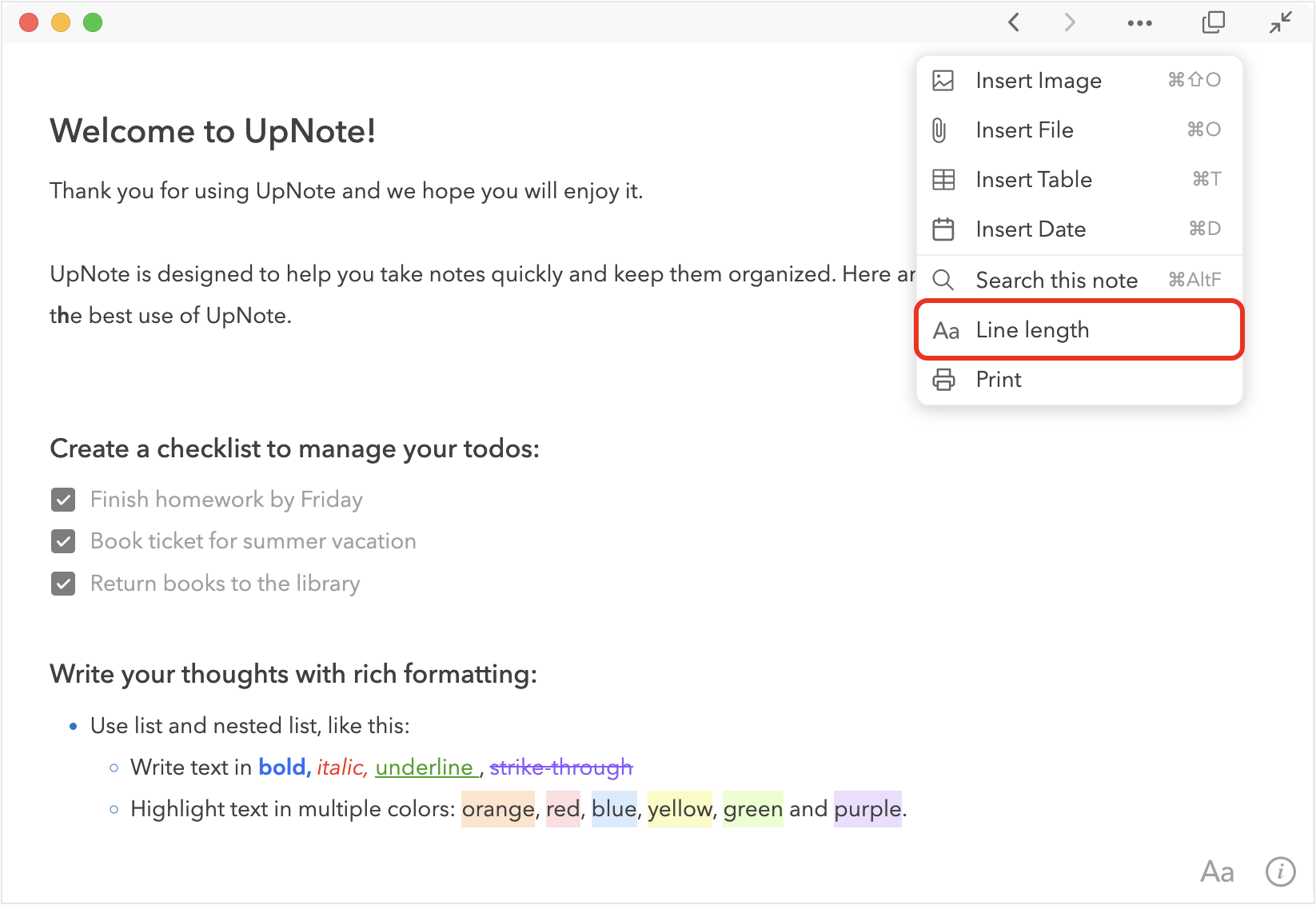
If you’re using **Focus Mode**, click the **More (⋯)** button in the upper corner of the UpNote window, then select **Line Length** to adjust your preferred text width.