> For the complete documentation index, see [llms.txt](https://help.getupnote.com/llms.txt). Markdown versions of documentation pages are available by appending `.md` to page URLs; this page is available as [Markdown](https://help.getupnote.com/write-and-edit/add-content-to-your-notes/preview-pdf-files.md).
# Preview PDF files
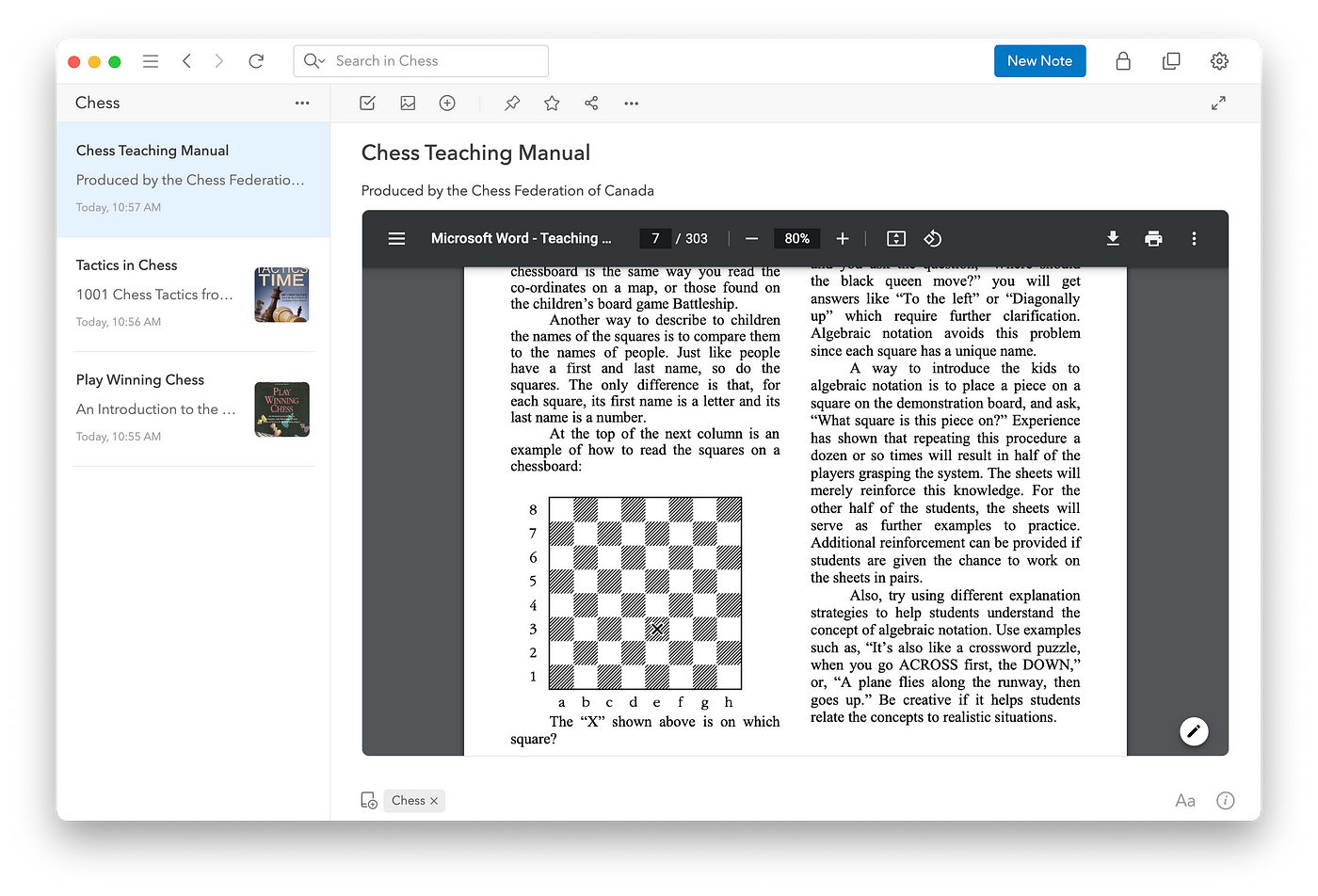
The embedded PDF viewer allows you to quickly scan through your PDF documents, go to a specific location, download or pint the file directly from your note. This feature is supported on Mac, Windows and Linux apps.
### Adjust the height of the PDF preview
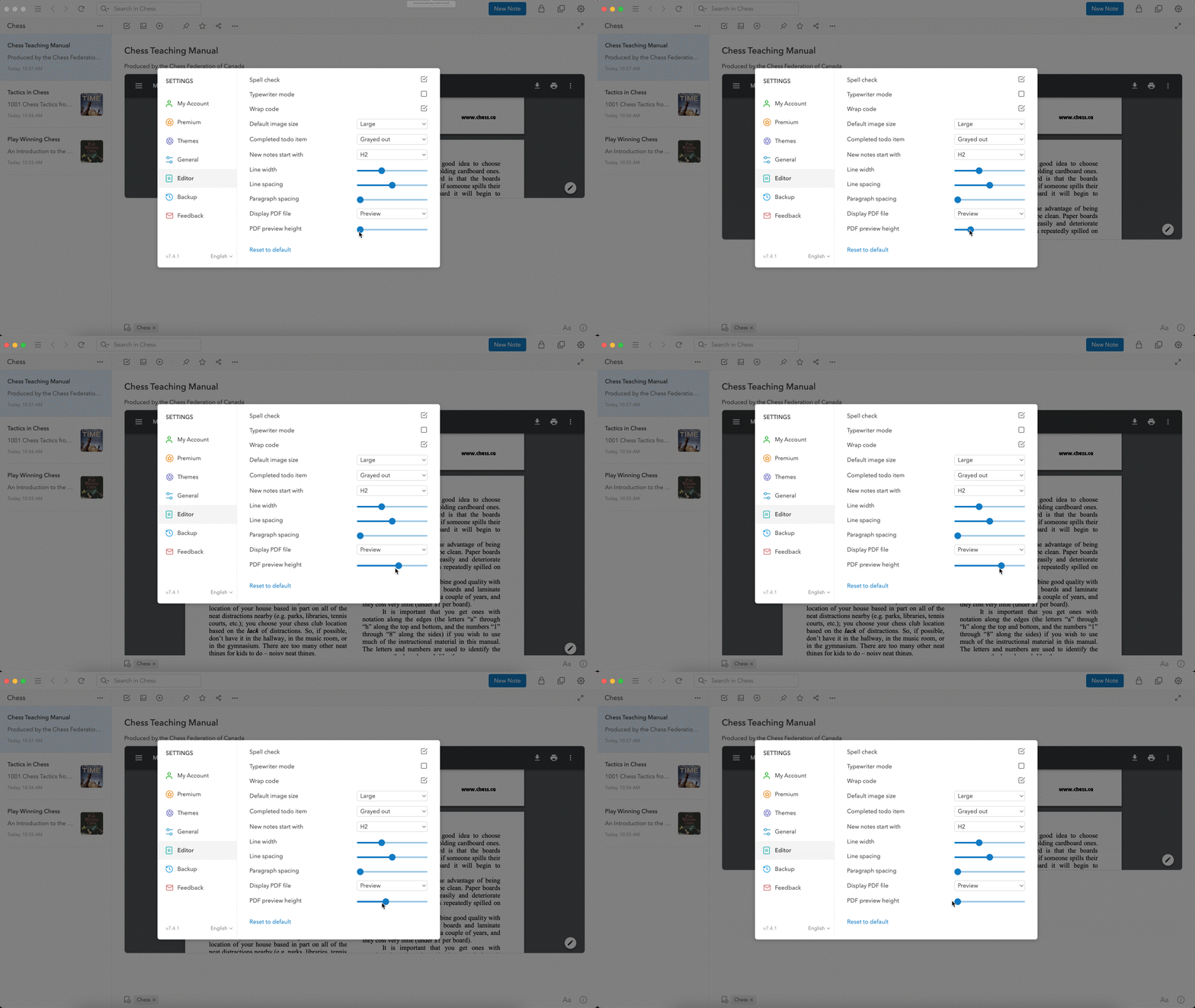
To adjust the height of the PDF preview, go to **`Settings`** > **`Editor`** > **`PDF preview height`** and move the handle :
### Display PDF files as Preview and Title
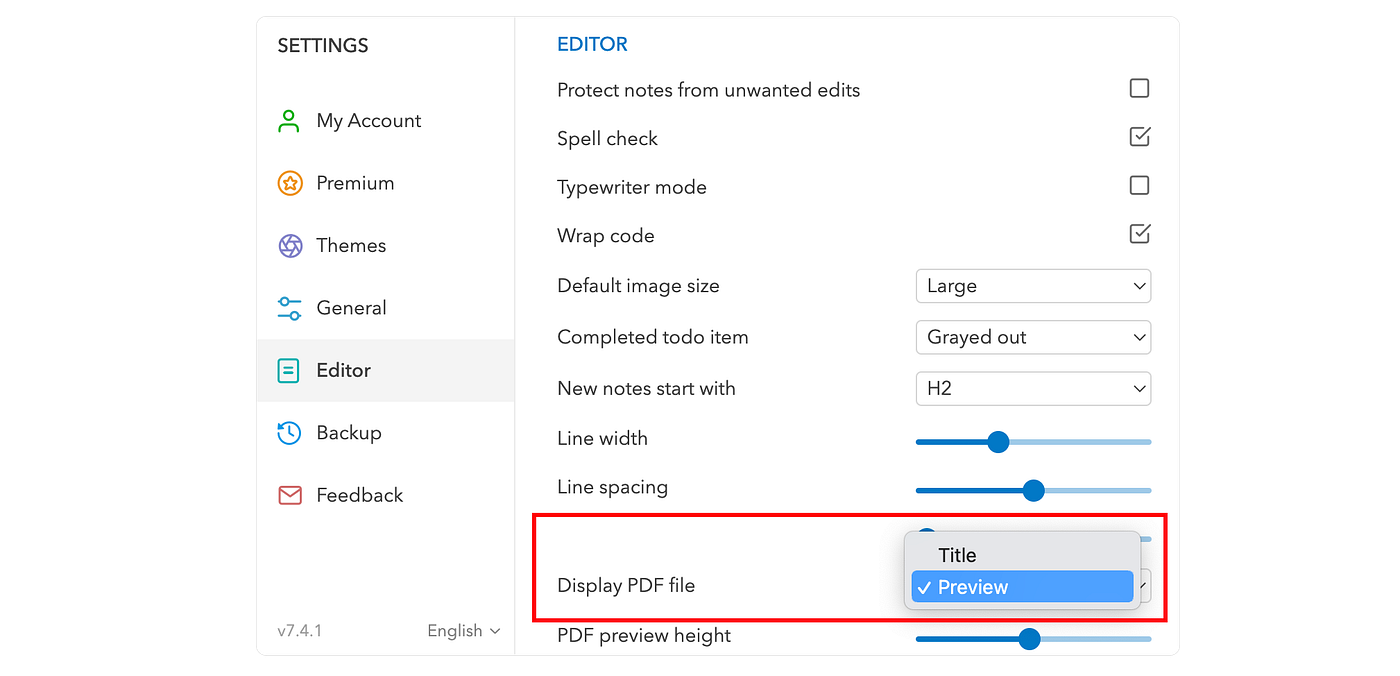
By default, PDF preview mode is turned on. You may display all PDF files as links by going to **`Settings`** > **`Editor`** > **`Display PDF File`** and select **`Title`.**
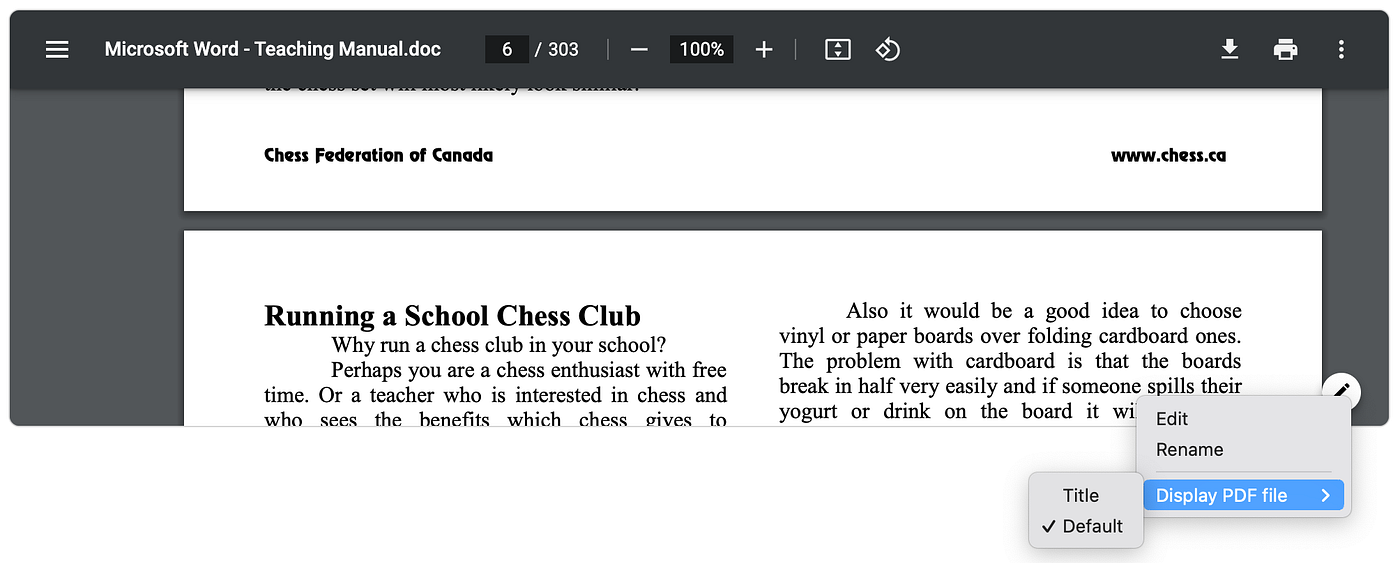
If you want to change the PDF display for each file, you may click the edit button in the bottom right corner of the PDF preview and select **`Display PDF file`** as below.
Similarly, if your default PDF display is title and you want to change that for an individual file, you can right click on the file name and select **`Display PDF file`** as below: