> For the complete documentation index, see [llms.txt](https://help.getupnote.com/llms.txt). Markdown versions of documentation pages are available by appending `.md` to page URLs; this page is available as [Markdown](https://help.getupnote.com/organize-and-manage-notes/organize-with-spaces/edit-a-space.md).
# Edit a space
You can edit a space in UpNote to update its name, delete it, or lock it for additional privacy (Premium). You can access space editing from the **Settings** screen or directly from your current workspace.
***
#### 🖥 On Desktop (Windows, Linux & macOS)
There are two ways to edit a space:
**1. From Settings**
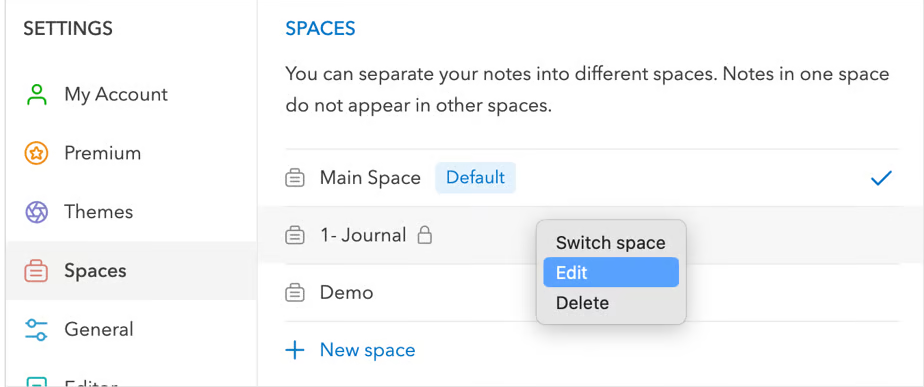
1. Go to **Settings → Spaces**.
2. Click the space you want to edit.
3. Select **Edit** to rename the space or adjust its settings (such as enabling Lock).
**2. From the Sidebar**
1. In the sidebar, click the **space name** at the top.
2. Select **Edit** to open the space settings.\

***
#### 📱 On Mobile (iOS & Android)
You can also edit spaces from both Settings and the sidebar:
**1. From Settings**
1. Go to **Settings → Spaces**.
2. Tap the space you want to edit.
3. Tap **Edit** to rename or configure the space.
**2. From the Sidebar**
1. Tap the **space name** at the top of the sidebar.
2. Select **Edit** to update the current space.\

***
#### 💡 Tip
The **General** space (default space) can be renamed but cannot be deleted.