> For the complete documentation index, see [llms.txt](https://help.getupnote.com/llms.txt). Markdown versions of documentation pages are available by appending `.md` to page URLs; this page is available as [Markdown](https://help.getupnote.com/organize-and-manage-notes/organize-with-notebooks/move-notes-across-notebooks.md).
# Move notes across notebooks
UpNote makes it easy to **move notes between notebooks**, helping you keep your content organized as your projects or ideas evolve. You can move one note at a time or multiple notes at once.
***
### On desktop
There are several ways to add or move notes between notebooks in UpNote, giving you flexibility to organize your notes quickly and efficiently.
#### 🖱️Drag and Drop
You can easily **drag and drop** notes from the note list into notebooks in the sidebar.
* By default, dragging a note to a notebook will **add** it to that notebook.
* If you prefer to **move** the note (instead of adding it to multiple notebooks), go to:\
**Settings → General → Others → Drag notes to notebook → Move to notebook.**
#### 📘 Use the Notebook Icon
Another way to add or move a note is from the note editor:
1. Click the **Notebook icon** at the bottom-left corner of the note editor.
2. Select one or more notebooks to add your note to.
3. You can also open this pop-up using the shortcut **Cmd/Ctrl + Shift + B**.
To remove a note from a notebook:
* Untick the current notebook from the list in the pop-up, or
* Click the **×** button on the notebook label directly in the note.
{% hint style="success" %}
**Tip**: In the Add to Notebooks pop-up, you can type the first few letters of a notebook name in the search box to find it faster.
* Use the Up/Down arrow keys to navigate between notebooks.
* Press Return/Enter to select or unselect a notebook.
{% endhint %}
#### Move multiple notes at once
You can move or add multiple notes to notebooks at once to reorganize your workspace more efficiently.
* In the note list, hold the **Shift** or **Cmd/Ctrl** key to select multiple notes.
* Once selected, you can:
* Drag and drop the notes into a notebook in the sidebar, **or**
* Use the options in the right panel:
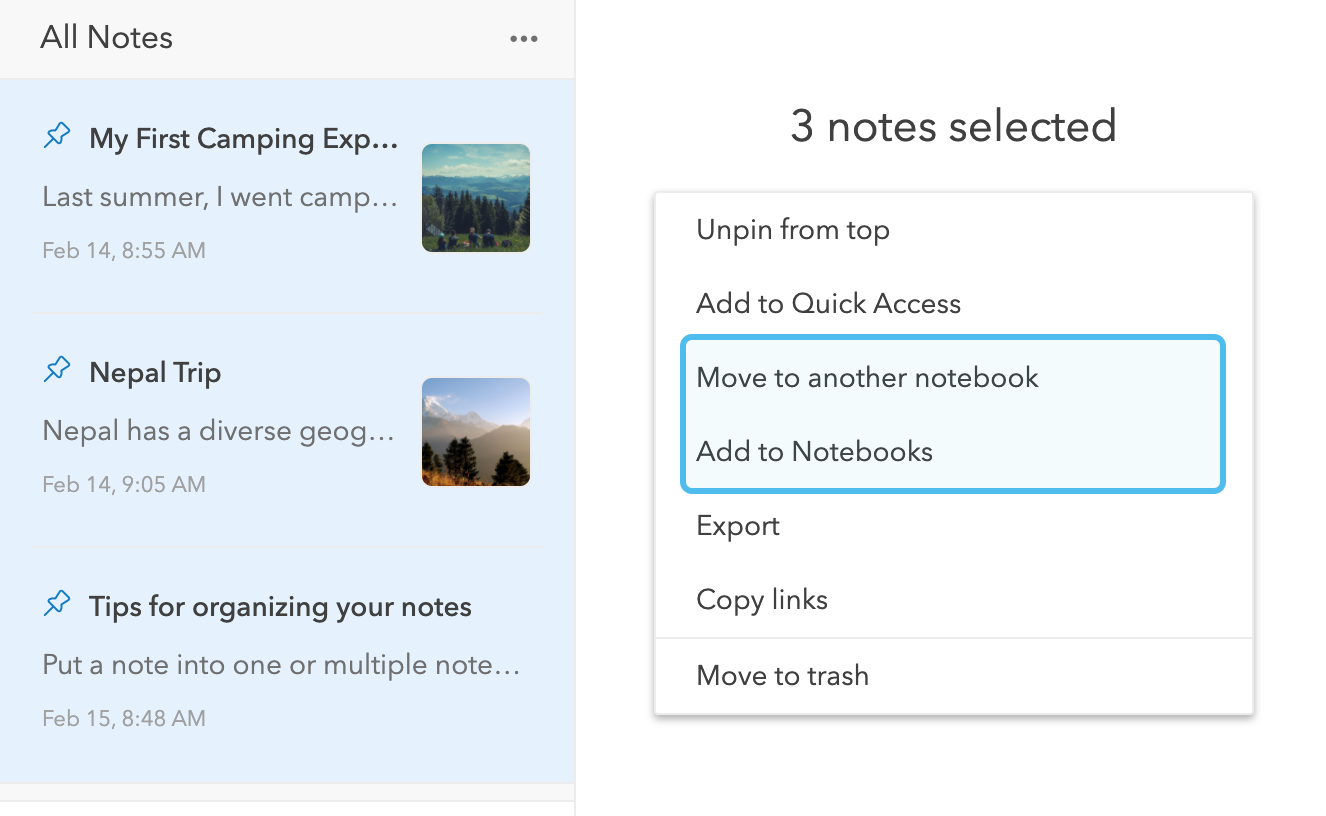
* **Move to another notebook** – Moves all selected notes to the chosen notebook.
* **Add to notebooks** – Adds the selected notes to additional notebooks, allowing you to organize them in more than one place.
### On mobile
You can perform the same actions on mobile by tapping the **Notebooks icon** at the bottom of the note editor to add or move a note to different notebooks.
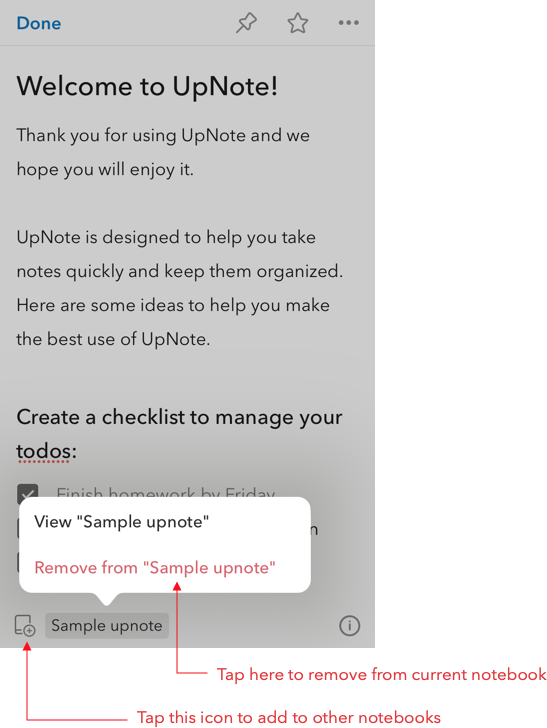
To move **multiple notes** at once:
1. Go to the **note list** screen.
2. Tap the **More (⋯)** button to enter multi-select mode.
3. Select the notes you want to move.
4. Tap the **Notebook** button and choose the destination notebooks.