> For the complete documentation index, see [llms.txt](https://help.getupnote.com/llms.txt). Markdown versions of documentation pages are available by appending `.md` to page URLs; this page is available as [Markdown](https://help.getupnote.com/organize-and-manage-notes/find-and-view-notes/search-for-notes.md).
# Search for notes
UpNote’s powerful search helps you quickly find notes, notebooks, and tags — even across large collections. You can search by keywords, phrases, or tags to instantly locate what you need.
### On desktop
* Type the phrase you want to find into the **search box** at the top of the UpNote window.
* Alternatively, you can press **Cmd+G (Mac)** or **Ctrl+G (Windows)** to quickly open the search box.
* You can toggle between searching in All Notes or only in the current notebook.
{% hint style="success" %}
💡 Tip: If you are using another app, press **Cmd+Option+G** (Mac) **/ Ctrl+Alt+G** (Windows) to open UpNote’s search from anywhere.
{% endhint %}
### On mobile
* Tap the search icon in the upper right corner of your notes list screen.
* Type the phrase you want to search in the search box
* You can select if you want to search in the current notebook/folder/tag or in All Notes
### Save a search (Desktop)
* After performing a search, click the **save button** in the search results.
* The saved search will appear in the **sidebar under the “All Notes” section** for quick access later.\

### Search for the exact phrase
* To find notes containing an **exact phrase**, wrap the phrase in **double quotation marks**.
* Example: `"UpNote features"` will return only notes containing that exact phrase.
### Search for tags
* Type `#` followed by the tag name to search notes with that tag.
* **Search multiple tags**: Type multiple `#tags` in the search box; UpNote will show notes containing all specified tags. You can also [save this search](#save-a-search-desktop) to stick it in the sidebar for quick access later.

### Search in title only
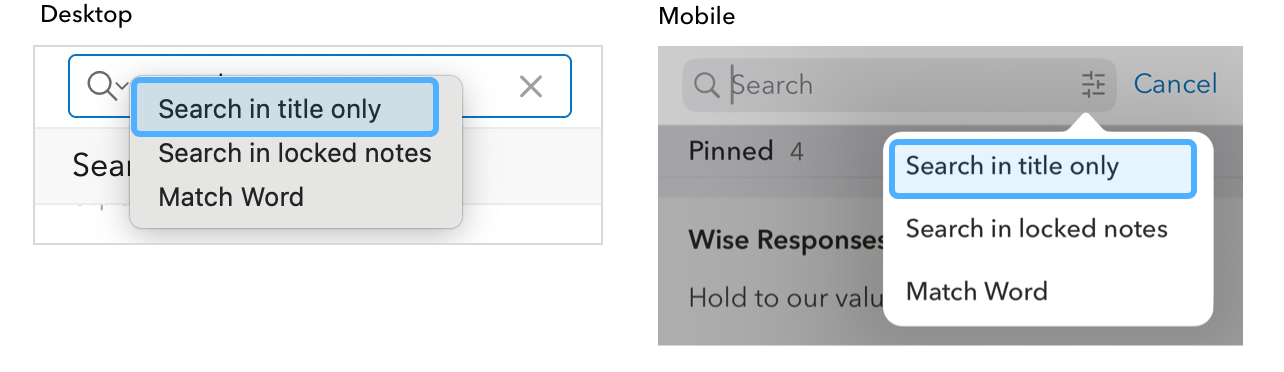
* By default, UpNote searches through both **note titles and content**.
* To limit results to **titles only**:
1. Open the **Search options/settings** in the search bar.
2. Select **“Search in title only.”**
### Search for notes in locked notebooks
* By default, UpNote **does not include notes from locked notebooks** in search results to protect your privacy.
* To include them:
1. Click the **Search option/settings** in the search bar.
2. Select **“Search in locked notes.”**
3. Enter your **lock password/passcode** when prompted to enable the option.
### Match Word
* By default, UpNote search will return results containing partial matches of your keyword.
* If you want to find results that match the **whole word exactly**, enable the **“Match word”** option in the **Search settings**.
* Example: searching for `note` with **Match word** on will return only “note,” not “notebook.”
### Search in notebooks
To search within a notebook, first select the notebook, then use the search box and choose the notebook option below the search field. This will limit the search to that notebook only.
If you'd like search results to include notes from all sub-notebooks, you can enable Show notes from sub-notebooks in main notebook in **Settings → General**. Once this option is enabled, the parent notebook will display notes from its sub-notebooks, and searching within the parent notebook will include those notes as well.

 in the upper right corner of your notes list screen.
* Type the phrase you want to search in the search box
* You can select if you want to search in the current notebook/folder/tag or in All Notes
### Save a search (Desktop)
* After performing a search, click the **save button** in the search results.
* The saved search will appear in the **sidebar under the “All Notes” section** for quick access later.\

### Search for the exact phrase
* To find notes containing an **exact phrase**, wrap the phrase in **double quotation marks**.
* Example: `"UpNote features"` will return only notes containing that exact phrase.
### Search for tags
* Type `#` followed by the tag name to search notes with that tag.
* **Search multiple tags**: Type multiple `#tags` in the search box; UpNote will show notes containing all specified tags. You can also [save this search](#save-a-search-desktop) to stick it in the sidebar for quick access later.

### Search in title only
* By default, UpNote searches through both **note titles and content**.
* To limit results to **titles only**:
1. Open the **Search options/settings** in the search bar.
2. Select **“Search in title only.”**
in the upper right corner of your notes list screen.
* Type the phrase you want to search in the search box
* You can select if you want to search in the current notebook/folder/tag or in All Notes
### Save a search (Desktop)
* After performing a search, click the **save button** in the search results.
* The saved search will appear in the **sidebar under the “All Notes” section** for quick access later.\

### Search for the exact phrase
* To find notes containing an **exact phrase**, wrap the phrase in **double quotation marks**.
* Example: `"UpNote features"` will return only notes containing that exact phrase.
### Search for tags
* Type `#` followed by the tag name to search notes with that tag.
* **Search multiple tags**: Type multiple `#tags` in the search box; UpNote will show notes containing all specified tags. You can also [save this search](#save-a-search-desktop) to stick it in the sidebar for quick access later.

### Search in title only
* By default, UpNote searches through both **note titles and content**.
* To limit results to **titles only**:
1. Open the **Search options/settings** in the search bar.
2. Select **“Search in title only.”**