> For the complete documentation index, see [llms.txt](https://help.getupnote.com/llms.txt). Markdown versions of documentation pages are available by appending `.md` to page URLs; this page is available as [Markdown](https://help.getupnote.com/organize-and-manage-notes/find-and-view-notes/filter-notes.md).
# Filter notes
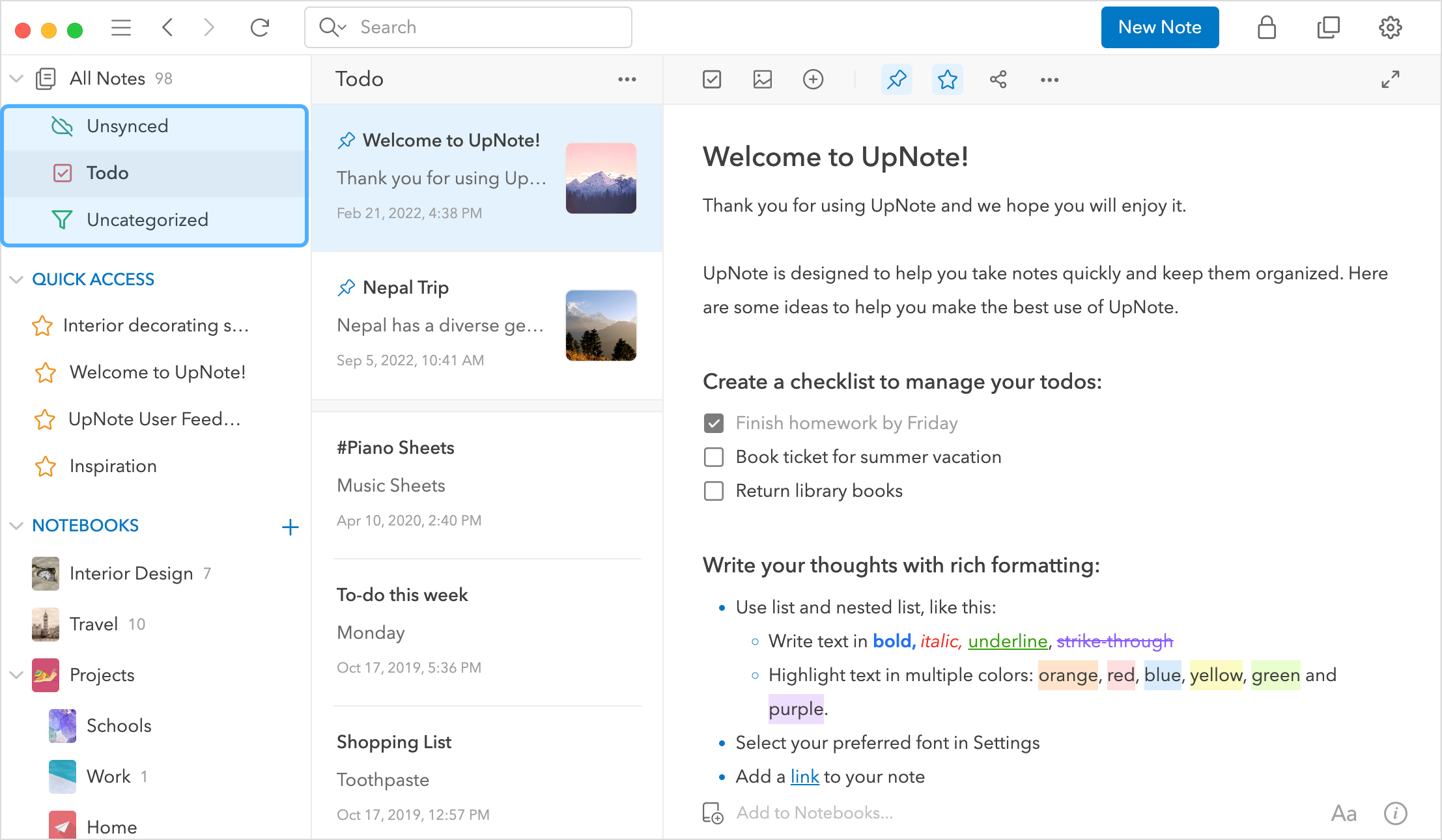
When you open UpNote, you’ll find three default filters — **To-Do**, **Uncategorized**, and **Unsynced** — located under the **All Notes** section in the sidebar.
You can click the **arrow (▾)** next to the **All Notes** label to expand or collapse these filters as needed. These options help you quickly view:
* **To-Do:** Notes containing checklists or unfinished tasks.
* **Uncategorized:** Notes that haven’t been added to any notebook.
* **Unsynced:** Notes that haven’t been saved to the server and synced to your account yet. You can use this filter to check if any notes are pending sync.
***
### Add a New Filter
#### 🖥 On Desktop (Windows, Linux & macOS)
1. Click the **More (⋯)** button next to the **All Notes** label in the sidebar.
2. Select **Filter All Notes**.\

#### 📱 On Mobile / Tablets (iOS & Android)
1. Go to the **All Notes** screen.
2. Tap the **More (⋯)** button in the bottom-right corner of the note list.
3. Select **Filter All Notes**.\

You can now choose the filter you want to add.
***
### Available Filters
* **Todo** — View notes containing incomplete to-do items.
* **Today** — View notes that were updated today.
* **Uncategorized** — Show notes not assigned to any notebook.
* **Untagged** — Show notes without any hashtags.
* **Shared notes** — Show notes currently shared via a web link.
* **Unsynced** — Show notes that haven’t fully synced to the server.
* **Notes containing words** — Filter notes by keywords you enter.
Once selected, the filter will appear under **All Notes** in the sidebar.
***
### Filter Notes Containing Multiple Tags
You can use filters to quickly find notes that contain **multiple hashtags** at the same time.
#### To create a multi-tag filter:
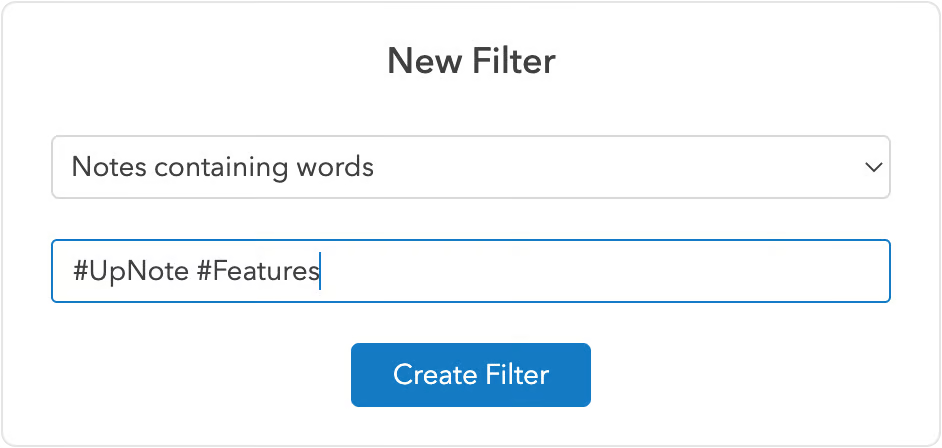
1. Add a new filter and select **Notes containing words**.
2. Enter the hashtags you want to include, for example: `#UpNote #Feature`
3. Click **Create Filter**.
Your new filter will now appear in the sidebar, showing all notes that contain **all** the specified hashtags.