> For the complete documentation index, see [llms.txt](https://help.getupnote.com/llms.txt). Markdown versions of documentation pages are available by appending `.md` to page URLs; this page is available as [Markdown](https://help.getupnote.com/ko/write-and-edit/info-panel.md).
# 정보 패널
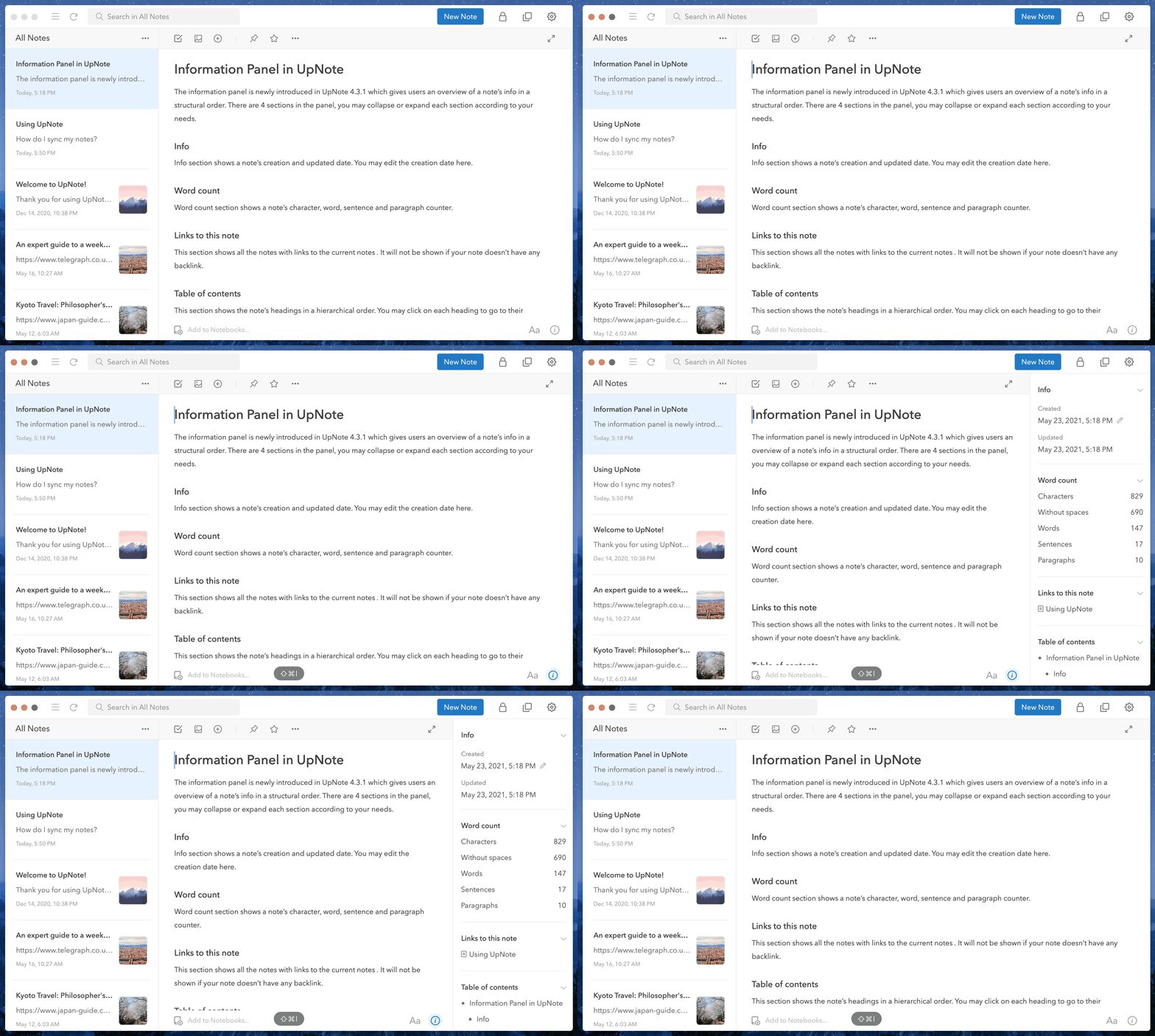
**정보 패널(Information Panel)** 은 노트의 세부 정보와 탐색 도구를 한눈에 볼 수 있는 구조화된 개요를 제공합니다.\
이 패널은 필요에 따라 펼치거나 접을 수 있는 네 가지 섹션으로 구성되어 있습니다:
* **정보(Info):** 노트의 생성일과 마지막 수정일을 표시합니다. 이곳에서 날짜를 직접 수정할 수도 있습니다.
* [**단어 수(Word Count)**](/ko/write-and-edit/info-panel/word-count.md): 문자, 단어, 문장, 문단 수를 통계로 보여줍니다.
* **이 노트를 참조하는 링크(Links to This Note):** 현재 노트를 참조하는 다른 노트 목록을 표시합니다. 이 섹션은 역방향 링크(backlink)가 있을 때만 표시됩니다.\
[UpNote의 양방향 링크 기능](/ko/write-and-edit/links-between-notes.md)에 대해 더 알아보세요.
* [**목차(Table of Contents)**](/ko/write-and-edit/info-panel/table-of-contents.md): 노트 내의 제목(heading)을 계층적으로 표시합니다.\
제목을 클릭하면 해당 섹션으로 바로 이동할 수 있습니다. 이 섹션은 제목이 포함된 노트에서만 표시됩니다.
***
#### 데스크톱에서
정보 패널을 표시하거나 숨기려면 노트 창 오른쪽 하단의 **`info`** 아이콘을 클릭하거나\
단축키 **`Ctrl/Cmd + Shift + I`** 를 사용합니다.
***
#### 모바일에서
노트 편집기 오른쪽 상단의\ 아이콘을 탭하면 정보 패널이 표시됩니다.

 아이콘을 탭하면 정보 패널이 표시됩니다.