> For the complete documentation index, see [llms.txt](https://help.getupnote.com/llms.txt). Markdown versions of documentation pages are available by appending `.md` to page URLs; this page is available as [Markdown](https://help.getupnote.com/ko/write-and-edit/add-content-to-your-notes/images.md).
# Images
### On desktop
1. Click the insert button in the [formatting bar](broken://pages/HW5x1P4soOaSshDTmAup) at the bottom the note editor and select **`Insert Image`** or use the shortcut **`Cmd/Ctrl`** + **`Shift` + `O`**
2. Select the image(s) you want to add from the pop up window
You can also use the shortcut **`Cmd/Ctrl`** + **`C`** and **`Cmd/Ctrl`** + **`V`** to copy and paste the image directly in your note.
### On mobile
1. Tap the image icon in the formatting bar
2. Select the image(s) you want to paste from your phone
***
### Image Size
* You can set a default image size in **Settings > Editor > Default image size**.
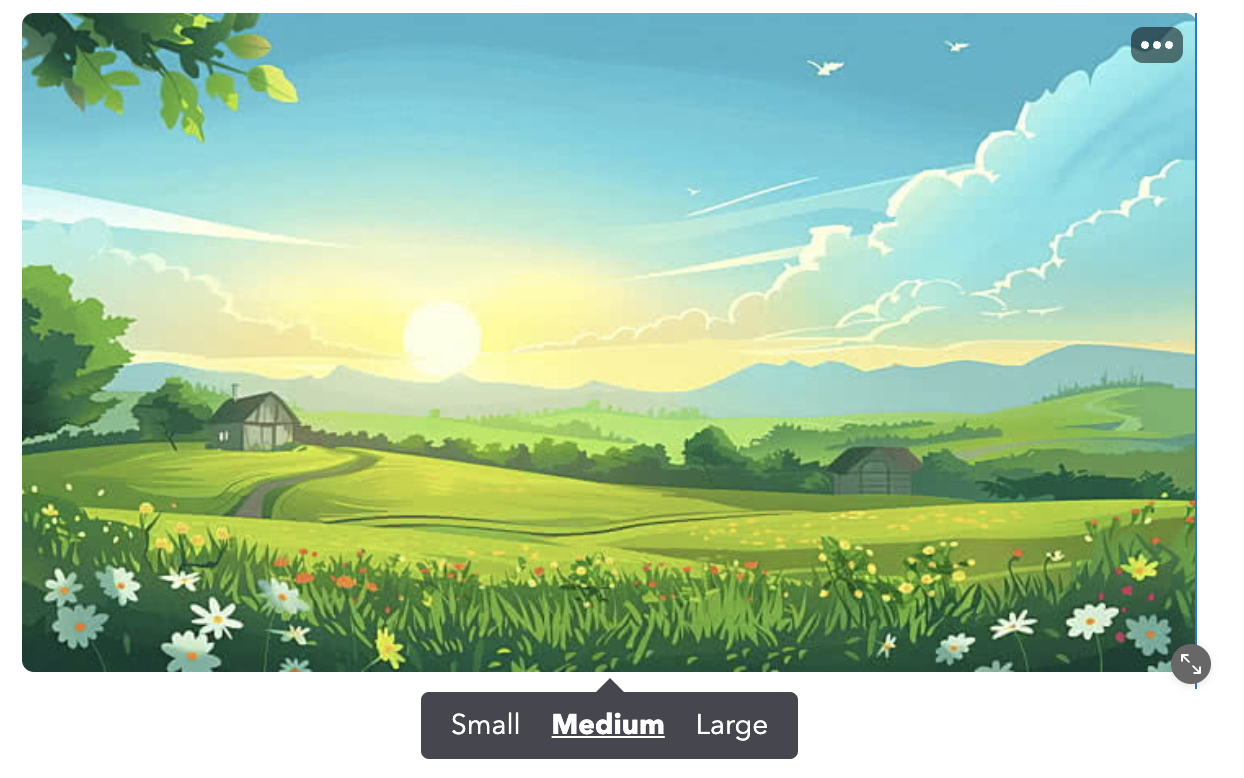
* To adjust an individual image, tap/click the image and choose **Small**, **Medium**, or **Large**.
* You can also resize manually by dragging the arrow at the bottom right corner of the image.
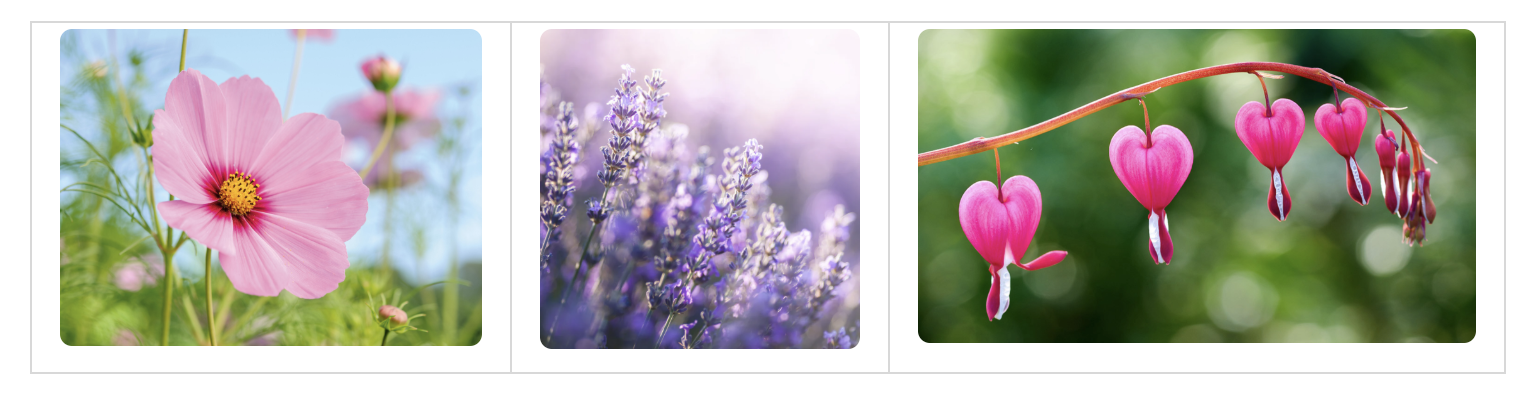
* If you want to align images horizontally or vertically, we recommend using a table and placing one image in each cell. Set the image size to "**Large**" so it fills the cell. This makes it easier to align and resize images by adjusting the cell widths/heights.
***
### Image Compression
When you add an image to UpNote, it is automatically compressed to ensure fast syncing across devices and to help manage server costs.
Images smaller than 1MB will not be resized. For larger images, we resize them so that the smallest dimension is 1000px, then compress the image to 90% quality.
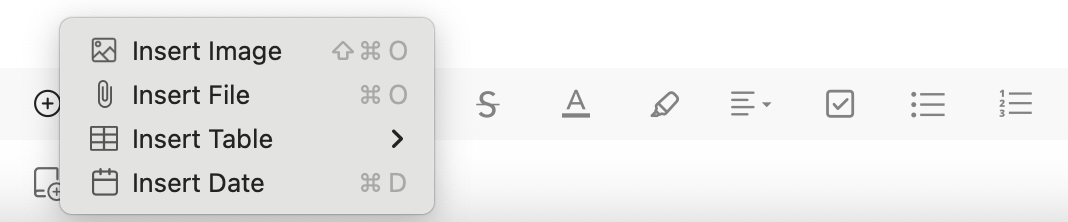
 in the [formatting bar](broken://pages/HW5x1P4soOaSshDTmAup) at the bottom the note editor and select **`Insert Image`** or use the shortcut **`Cmd/Ctrl`** + **`Shift` + `O`**
 in the formatting bar
2. Select the image(s) you want to paste from your phone
***
### Image Size
* You can set a default image size in **Settings > Editor > Default image size**.
* To adjust an individual image, tap/click the image and choose **Small**, **Medium**, or **Large**.
in the formatting bar
2. Select the image(s) you want to paste from your phone
***
### Image Size
* You can set a default image size in **Settings > Editor > Default image size**.
* To adjust an individual image, tap/click the image and choose **Small**, **Medium**, or **Large**.