> For the complete documentation index, see [llms.txt](https://help.getupnote.com/llms.txt). Markdown versions of documentation pages are available by appending `.md` to page URLs; this page is available as [Markdown](https://help.getupnote.com/ko/write-and-edit/add-content-to-your-notes/date-and-time.md).
# Date and Time
Follow the steps below to insert date and time in your note:
### On desktop
* Click the insert button in the [formatting bar](broken://pages/HW5x1P4soOaSshDTmAup) at the bottom the note editor and select **`Insert Date`** or use the shortcut **`Cmd/Ctrl`** + **`D`**
* You can use other shortcuts for more date/time options:
* **`Cmd/Ctrl`** + **`Shift`** + **`D`:** insert **date only**
* **`Cmd/Ctrl`** + **`Shift`** + **`Option`** + **`D`:** insert **time only**
* Or type **`/date`** and select the date format you want to insert.\

### On mobile
1. Tap the calendar icon in the formatting bar. You may scroll to the right to see more options. If you often need to insert date to your note, you may [reorder](https://help.getupnote.com/write-and-edit/format-your-text#on-mobile) the calendar icon to the front of the formatting bar.
2. Select the date/time format you want to insert.
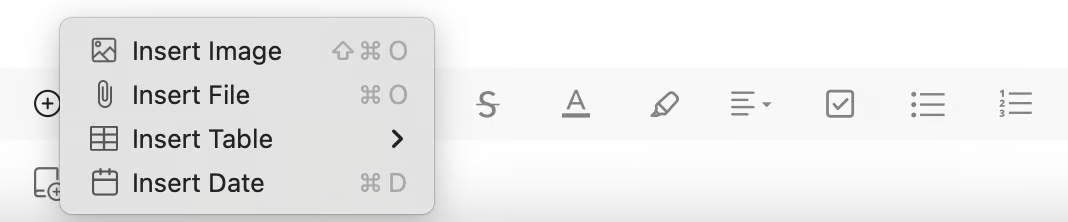
 in the [formatting bar](broken://pages/HW5x1P4soOaSshDTmAup) at the bottom the note editor and select **`Insert Date`** or use the shortcut **`Cmd/Ctrl`** + **`D`**
  in the formatting bar. You may scroll to the right to see more options. If you often need to insert date to your note, you may [reorder](https://help.getupnote.com/write-and-edit/format-your-text#on-mobile) the calendar icon to the front of the formatting bar.
2. Select the date/time format you want to insert.
in the formatting bar. You may scroll to the right to see more options. If you often need to insert date to your note, you may [reorder](https://help.getupnote.com/write-and-edit/format-your-text#on-mobile) the calendar icon to the front of the formatting bar.
2. Select the date/time format you want to insert.