> For the complete documentation index, see [llms.txt](https://help.getupnote.com/llms.txt). Markdown versions of documentation pages are available by appending `.md` to page URLs; this page is available as [Markdown](https://help.getupnote.com/ko/write-and-edit/add-content-to-your-notes/attachments.md).
# Attachments
The premium version allow you to insert files of any type (PDF, doc, docx, txt, mp4...) in your notes. There is no limit in the number of attachments. However for optimal syncing performance, each file is capped at 20 MB.
Follow the steps below to insert attachments in your note:
### On desktop
* Click the insert button in the [formatting bar](broken://pages/HW5x1P4soOaSshDTmAup) at the bottom the note editor and select **`Insert File`** or use the shortcut **`Cmd/Ctrl`** + **`O`**
* Select the file you want to insert from the Finder/Explorer pop up
### On mobile
* Tap the button in the formatting bar
* Select **`Attachments`**\
\

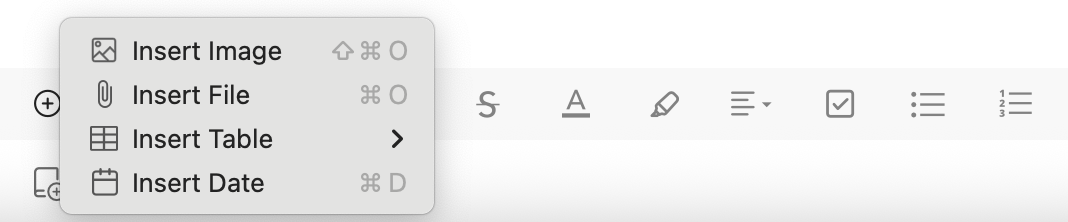
 in the [formatting bar](broken://pages/HW5x1P4soOaSshDTmAup) at the bottom the note editor and select **`Insert File`** or use the shortcut **`Cmd/Ctrl`** + **`O`**
  button in the formatting bar
* Select **`Attachments`**\
\

button in the formatting bar
* Select **`Attachments`**\
\
