> For the complete documentation index, see [llms.txt](https://help.getupnote.com/llms.txt). Markdown versions of documentation pages are available by appending `.md` to page URLs; this page is available as [Markdown](https://help.getupnote.com/ko/resources/widgets-for-mobile-apps.md).
# 모바일 앱용 위젯
UpNote는 **iOS와 Android**에서 위젯을 지원하여, 홈 화면에서 노트를 더욱 빠르게 열 수 있습니다. 위젯을 활용하면 최근 노트, 고정된 노트, 특정 노트 목록 등을 손쉽게 확인할 수 있어 정리와 접근이 더욱 편리해집니다.
***
UpNote는 iPhone, iPad, Android에서 다음과 같은 여러 종류의 위젯을 제공합니다:
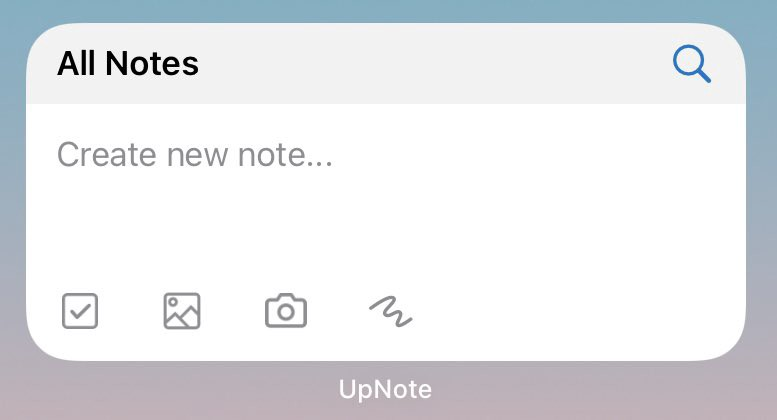
**빠른 작업(Quick Action) 위젯**
**빠른 작업 위젯**을 사용하면 다양한 유형의 노트를 빠르게 만들 수 있습니다.\
다음 작업을 즉시 실행할 수 있습니다:
* 새 노트 생성
* 새 작업(Task) 추가
* 이미지 삽입
* 사진 촬영
* 그림 추가
또한 새 노트를 저장할 위치도 선택할 수 있습니다:
* **전체 노트(All Notes)**
* 특정 **태그(Tag)**
* 특정 **노트북(Notebook)**
***
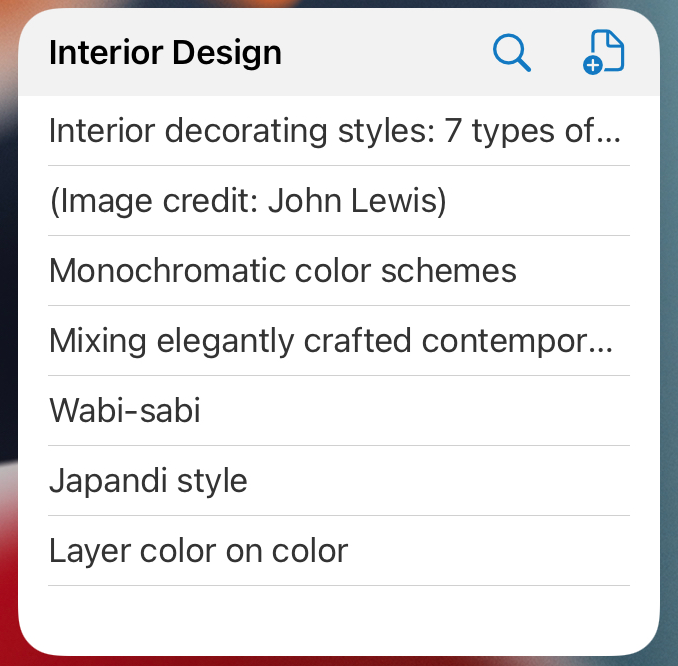
**노트 목록 위젯 (Notes List Widget)**
노트 목록을 다음 위치 중 하나로 설정할 수 있습니다:
* **전체 노트**
* **빠른 접근(Quick Access)**
* 특정 **노트북**
* 특정 **태그**
* 특정 **필터(Filter)**
이 위젯을 통해 다음 작업을 수행할 수 있습니다:
* 원하는 노트를 빠르게 열기
* 노트 검색
* 선택된 위치에 새 노트 만들기
**노트 목록 위치 설정 방법:**
1. 위젯을 길게 누릅니다.
2. \*\*Edit Widget(위젯 편집)\*\*을 탭합니다.
3. 원하는 위치(필터, 노트북, 태그)를 선택합니다.
***
**단일 노트 위젯 (Single Note Widget)**
특정 노트의 내용을 직접 보여주는 위젯으로, 자주 사용하는 노트로 바로 이동할 수 있습니다.
***
**iOS에서 위젯 추가하는 방법**
1. 홈 화면을 길게 누른 뒤 왼쪽 상단의 **Edit** 버튼을 탭합니다.
2. **Add Widget**을 선택합니다.
3. 위젯 목록에서 **UpNote**를 찾습니다.
4. 원하는 크기와 위젯 유형을 선택합니다.
5. **Add Widget**을 탭하고 필요 시 노트북, 태그, 노트를 설정합니다.
***
**Android에서 위젯 추가하는 방법**
1. 홈 화면을 길게 누르고 **Widgets**를 선택합니다.
2. 목록에서 **UpNote**를 찾습니다.
3. 원하는 크기와 유형을 선택합니다.
4. 위젯을 홈 화면에 드래그하여 배치합니다.
5. 필요하다면 특정 노트 또는 노트북을 설정합니다.