> For the complete documentation index, see [llms.txt](https://help.getupnote.com/llms.txt). Markdown versions of documentation pages are available by appending `.md` to page URLs; this page is available as [Markdown](https://help.getupnote.com/import-and-export/web-clipper/share-extension-on-ios.md).
# Share extension on iOS
UpNote supports the iOS **Share Extension**, allowing you to quickly send web pages, images, or selected text directly to UpNote from other apps. This makes it easy to capture content on the go and keep everything organized in your notes.
***
### Share a Web Page
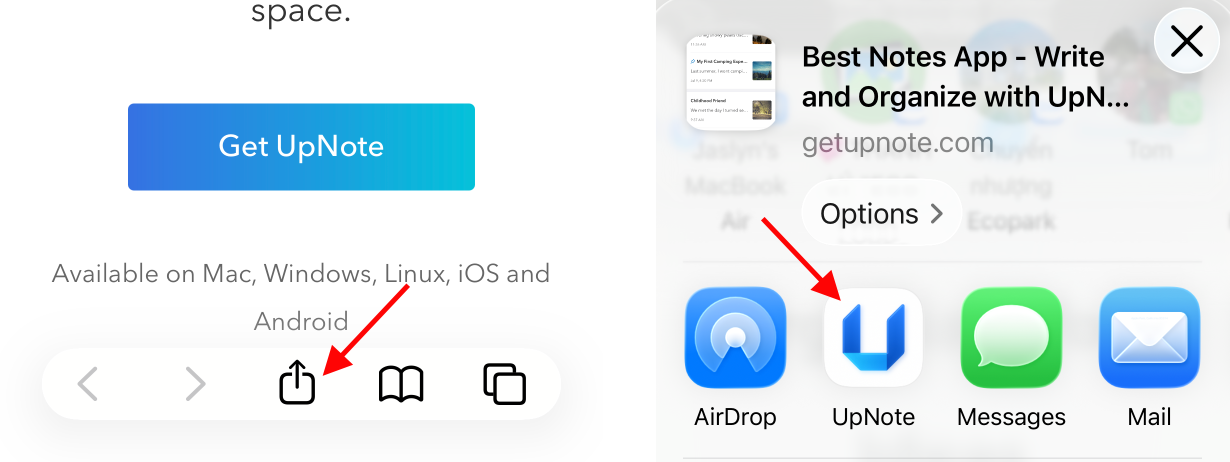
1. Open a web page in **Safari**.
2. Tap the **Share** button in the bottom bar.
3. Select **UpNote** from the app list.
**If UpNote does not appear in the app list:**
1. Swipe to the **far right** of the app list.
2. Tap **More**.
3. Tap **Edit** in the upper-right corner.
4. Enable **UpNote** to add it to your share options.
You can add extra details to your note (optional), then tap **Post** to send it to UpNote.
The web page will be clipped to UpNote. Open the UpNote app to view it and sync it across your devices.
***
### Share Selected Text
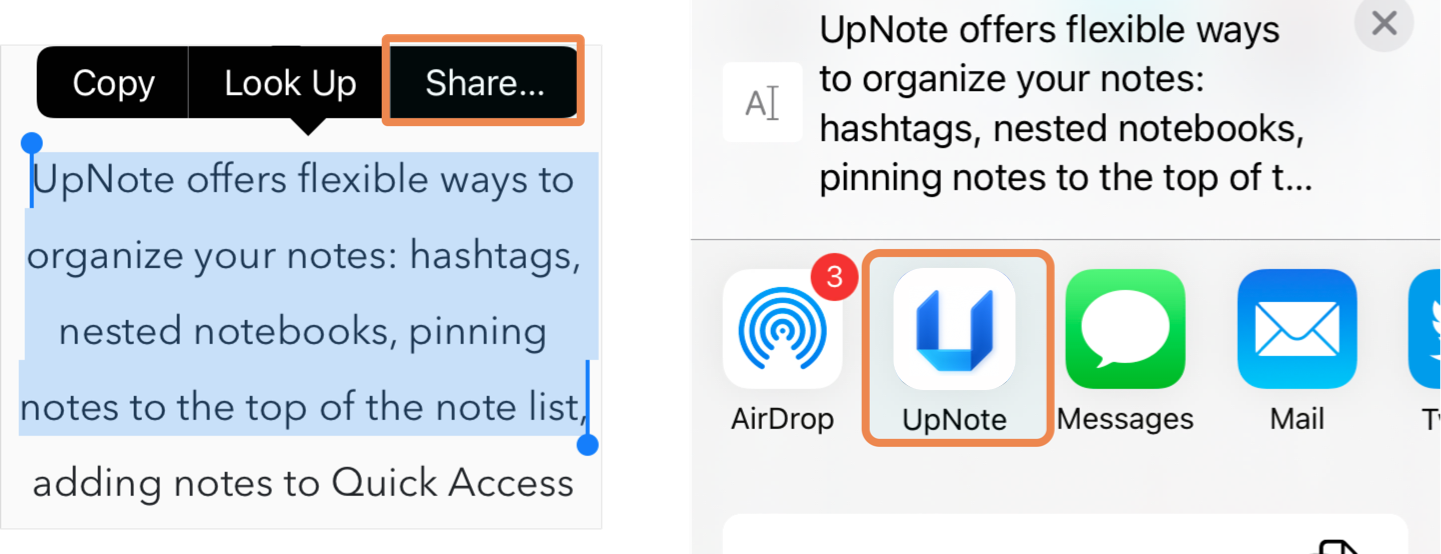
1. Select the text you want to share.
2. Tap the **Share** button that appears in the pop-up menu.
3. Choose **UpNote** from the app list.
**If UpNote does not appear:**
1. Swipe to the **right end** of the app list.
2. Tap **More**.
3. Tap **Edit** and enable **UpNote** to add it.
Add optional details if needed, then tap **Post** to share your text into UpNote.
The selected text will appear as a new note in UpNote. You can then open the app to view it and sync it to other devices.
***
#### 💡 Tips
* You can share **images**, **text**, and **web links** from any app that supports the iOS Share Sheet.
* Shared content is saved as a **new note**, which you can move, tag, or edit once inside UpNote.